
Enable workflows for a case
Workflows are templates that you build once and activate in specific cases. You enable workflows from inside each case.
Go to case workflows
Open a case and click Workflows in the left sidebar.
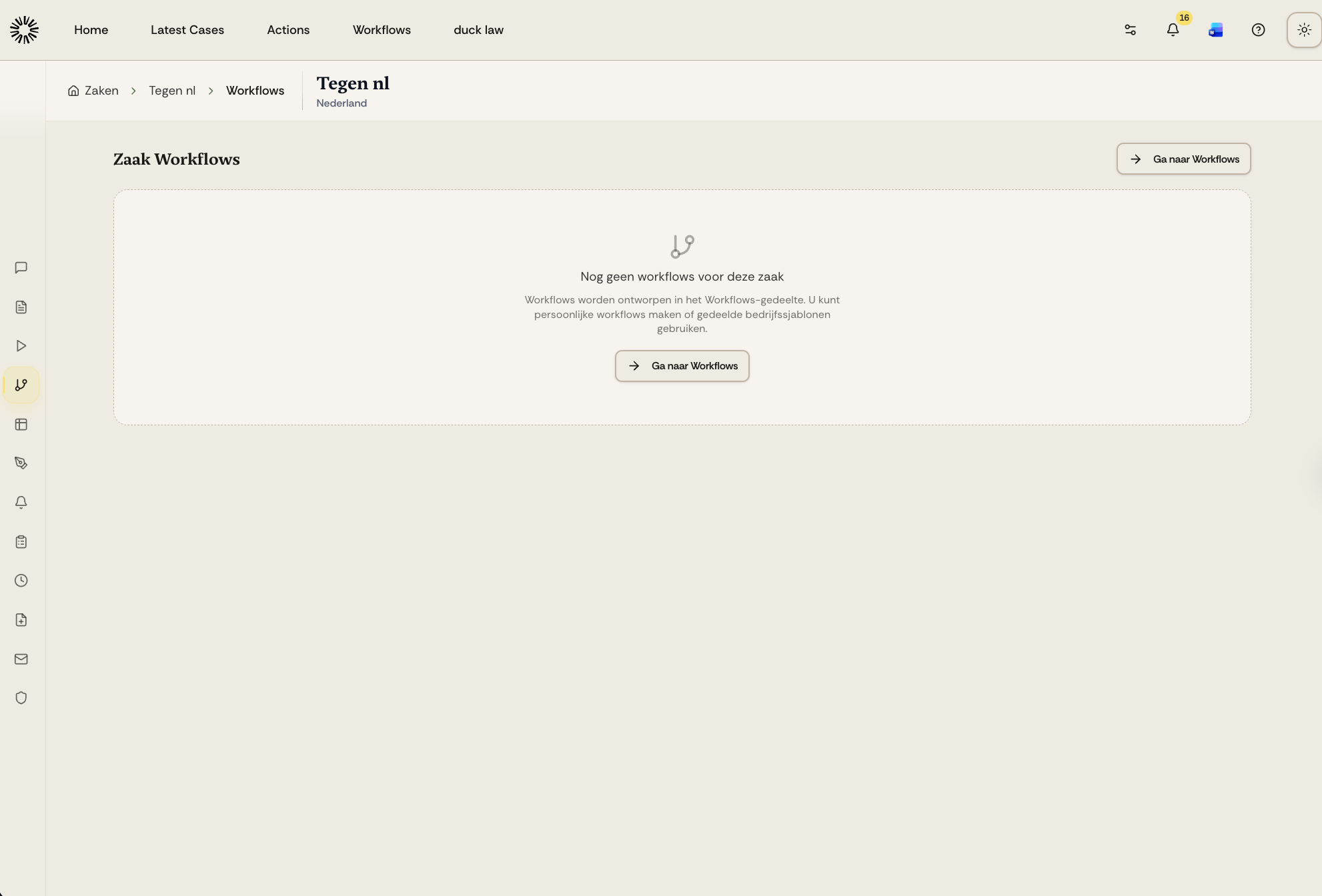
Case workflows page
The case workflows page shows all workflows available for this case. If no workflows are enabled yet, you see an empty state with a button to go to the Workflows section.
Workflows are designed in the Workflows page. You can create personal workflows or use shared company templates.
Activate a workflow
From the case workflows page, you can activate any available workflow template:
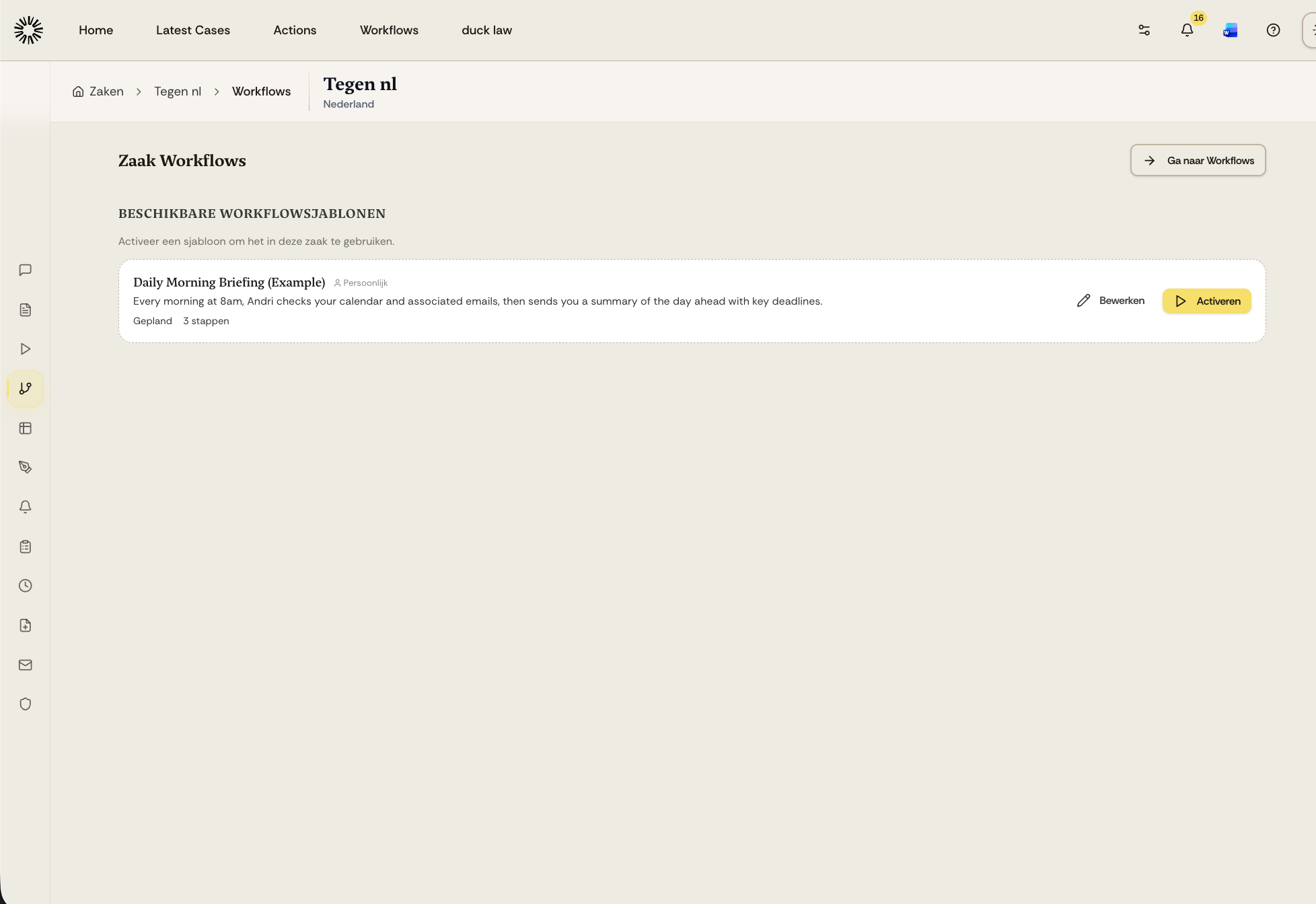
Click Activate. Andri asks you to set the values that belong to this matter, such as recipients, filters, or a deadline date, and the workflow author decides which of those you are asked for. If a workflow needs nothing case-specific, Andri says so and you can activate it straight away.
Once activated, the workflow runs on its trigger.
How workflows run
After activating a workflow, it runs based on its trigger:
Manual triggers: click Run on the activated workflow to start it on demand, filling in any fields the author defined
Scheduled triggers: run automatically on the schedule you configure
Email triggers: run automatically when emails arrive in the case inbox
Deadline triggers: run automatically before important dates
Assignment triggers: run when case assignments change, if assignments are enabled for your firm
Turn a workflow off again
Click Deactivate on an activated workflow to remove it from the case. Andri asks you to confirm, and any run that is already in progress finishes normally.
Next steps
Learn about workflow triggers to understand how each type starts the workflow automatically or on demand.