
Emailing files to your case
You can forward emails and attachments directly to your case by sending to a unique case email address. This is useful when clients send you documents via email: you forward the message to your case, and both the email content and attachments are added to the case knowledge base.
Sending documents by email is available on paid plans. Only the matter owner can change the settings below. Firms hosted in Switzerland do not get a case email address.
Look up your case email address
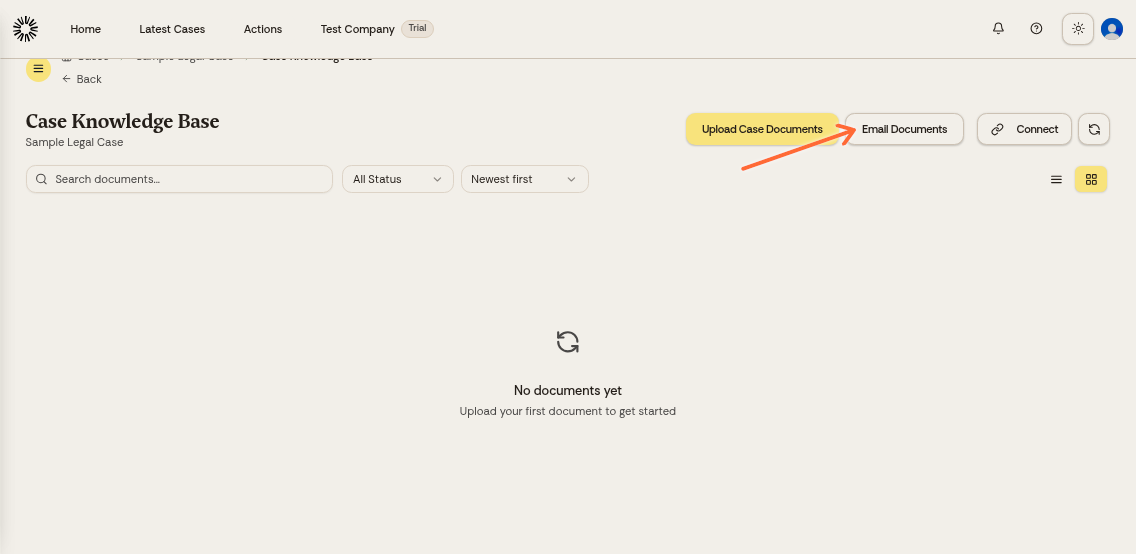
Open your case from the cases dashboard. In the Matter Knowledge Base section, click Email Documents.
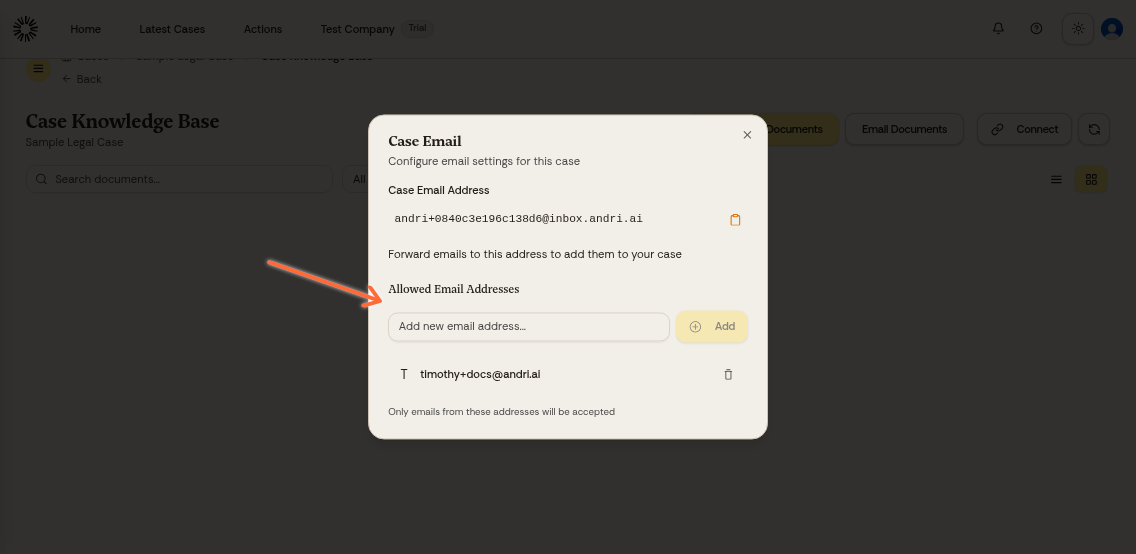
The Matter Email dialog shows your unique case email address and the allowed senders list.
Add allowed email addresses
In the Allowed Email Addresses section, type the email address you want to allow and click Add. Repeat for each client or team member who will send documents to this case.
Only emails from allowed addresses are accepted. Anyone who writes in from another address gets an automatic reply saying the email was not processed.
To remove an allowed address, click the trash icon next to it.
Forward emails to your case
Copy the case email address from the dialog. When you receive an email with attachments from a client, forward it to this address.
Andri processes both the email content and any attachments, adding them to your case knowledge base. The email body and its quoted chain are saved as a text document named after the subject and sender. It is searchable straight away, and downloads as a .txt file.
Attachments of an unsupported type are left out, and Andri emails the sender to say which ones were rejected. Attachments that are already in the case produce a separate duplicate notice.
You can forward multiple emails to the same case. Each email and its attachments are added separately.
Related articles
For uploading files through the web interface, see Uploading files to your case.
For details on supported file types and limits, see Which file types can I upload to the case knowledge base in Andri AI?