
Install and use Andri for Word
Install Andri for Word from the Office add-ins in Microsoft Word. The Microsoft Marketplace lists the app as Andri, under the product name Andri for Word.
Andri for Word requires an active Andri account with company membership and a Business subscription plan. The app is available in English and Dutch.
What you need
Andri checks your company membership and your subscription every time the add-in opens, so put all three in place first.
An active Andri account with company membership
A Business subscription plan. Andri for Word is not available on the free plan
A current Microsoft 365 version of Word. The add-in uses recent Word features, so an older perpetual release cannot run it
You do not need to connect OneDrive, SharePoint or a Microsoft account. The add-in reads and writes only the document you have open, and it talks to your Andri workspace directly.
Supported platforms
Andri for Word works with Microsoft 365 Word:
Word on Windows
Word on Mac
Word on the web
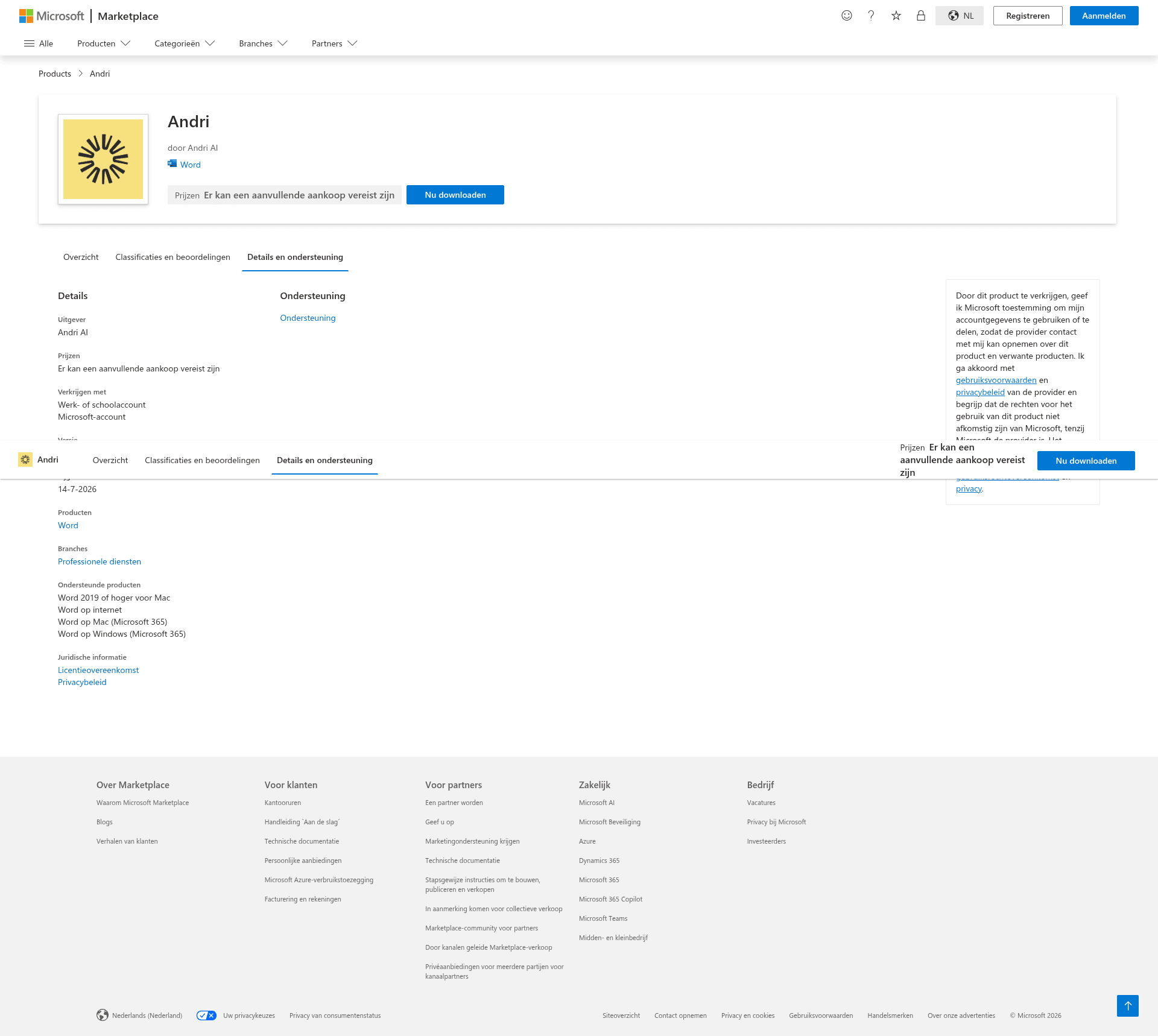
Product page: Andri for Word in the Microsoft Marketplace.
What Andri for Word does
Andri for Word brings the Andri legal AI platform into Microsoft Word. This is what you can do with it:
draft, review and sharpen legal documents with AI help based on your case files and company knowledge base
search relevant case law and legislation while you edit
apply changes as tracked changes
save and manage documents as Andri drafts
reach your full Andri workspace, including case documents, knowledge base and legal research tools
Install on Windows (Microsoft 365)
These steps follow Microsoft's guidance for Office add-ins, which covers Microsoft 365 apps on Windows only.
Add the add-in
Open Microsoft Word.
Go to File > Get Add-ins.
Or, on the Home tab, go to Add-ins.
Choose More Add-ins to search further in the Office add-ins.
Search for Andri.
Select the add-in and choose Add.
Open or manage an installed add-in
Microsoft gives two routes:
File > Get Add-ins, then More Add-ins at the bottom
or Home > Add-ins > More Add-ins
Open the My Add-ins tab.
Select Andri.
If the add-in is not visible, choose Refresh to reload the list.
Install on Mac
Andri for Word works on Mac with Microsoft 365. The Microsoft guidance above covers Windows only.
For Office on Mac, Microsoft Support gives these routes:
File > Get Add-ins
or, in Word: Home > Add-ins
Open Word on the Mac.
Go to File > Get Add-ins, or to Home > Add-ins.
Search for Andri.
Select the add-in and choose Add.
For managing add-ins, Microsoft Support points to:
File > Get Add-ins > More Add-ins
or Home > Add-ins > More add-ins
then My Add-ins, and Refresh if needed
Sign in
Use the Andri account you already have. There is no separate add-in account and no sign-up inside Word.
Choose Sign in in the pane. A secure sign-in window opens over Word, and the pane loads your workspace once you are through it.
If your firm is on the free plan, the pane shows Business subscription required instead of your cases. Set up billing in your company billing settings, then choose Refresh in the pane.
When the add-in never appears, or the pane will not load or sign you in, work through Andri for Word does not appear or does not work.
Open a case
The pane opens on your case list, which you can search, filter by tag and sort. Selecting a case opens its drafts, plus a tab for the documents in the case and a tab for the documents Andri has generated for it.
The case list shows only cases you own. A case a colleague created and shared with you does not appear in Word, so work on shared matters in Andri on the web. Files in a case that are not Word documents also open on the web rather than in the pane.
Working with Andri in Word
Word puts an Andri button on the Home tab. Select it to open the Andri pane.
The pane opens beside your document and works like a chat: type your question or instruction at Ask Andri... and Andri works directly in the open document.
Select text in the document first if your question is about that text. The selection then appears as Selection above the input field and travels with your question; you remove it there as well.
Andri reads the rest of the document too, so it can still answer about sections you have not selected. The selection decides where the edits land.
Edits arrive as tracked changes. In the Changes in your document card you accept or reject each change separately, and jump to the matching place in the document.
The Case files and Drafts tabs open the documents from your case and your earlier drafts without leaving Word.
How tracked changes work
Andri switches track changes on before every edit and restores your own setting afterwards, so its work always arrives as revisions you accept or reject.
Word takes the author of a revision from your Word user name, so Andri's edits appear under your name rather than under Andri. Change your user name in Word's own settings if the name on the revisions is wrong.
Andri redlines the words it changed rather than the whole paragraph. When a change covers more than half of a paragraph, the paragraph is redlined as a whole. Header and footer edits carry no revision marks, because Word does not track changes there.
You can also ask Andri to accept or reject one change or every change in the document, and to add, reply to or resolve comments.
Save your work back to Andri
Saving from the pane stores the document as a draft on the case and adds a version each time, and that draft is available in Andri on the web. You can also save a document into the case files or into your company knowledge base.
Some versions of Word, including Word on the web, cannot load a document's headers, footers and full styling. Andri tells you when that has happened, and a version you save from there will not carry the original formatting, so use Word on the desktop for a document whose layout matters.
What uses credits
Each question you send in the pane is an AI turn that draws on your company's credit allowance, the same pool as chat and drafts in the web app. Opening cases, opening or downloading documents and saving versions cost nothing.
When the allowance runs out, Andri stops before the answer starts and the pane shows a card. You've used all your credits comes with a Get more credits button; You've reached your plan limit comes with Manage billing in app.andri.ai. Both take you to your company billing settings, where you add credits or seats.