
Workflow triggers
Triggers determine how your workflow starts. A workflow needs at least one trigger and can have up to five, so the same process can start from a schedule and on demand.
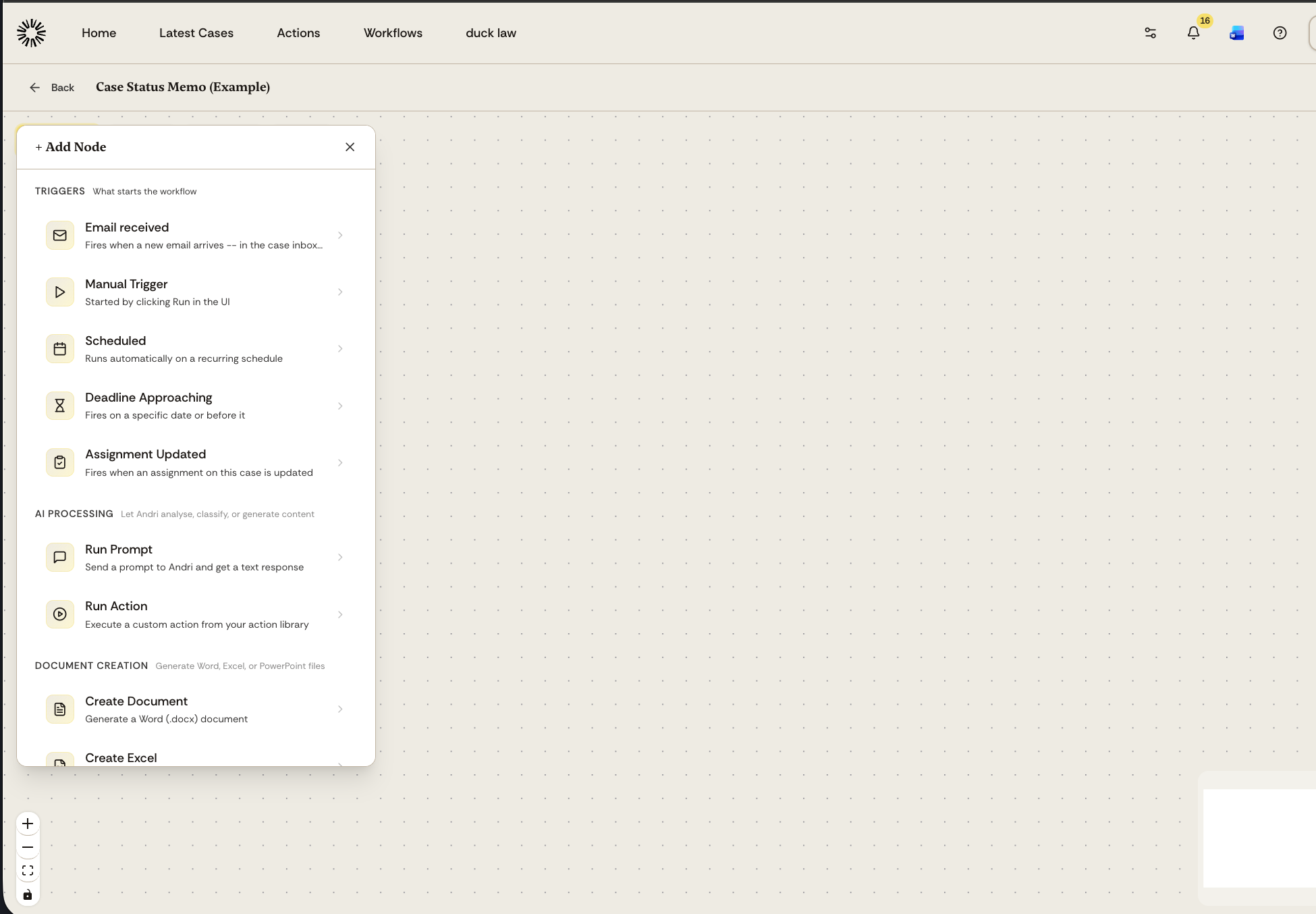
Trigger types
Email received
Fires when a new email arrives in the case inbox. Every case in Andri has its own email address, so nothing needs to be connected first, and the workflow receives the subject, sender, body, and any attachments.
Manual Trigger
Started by someone opening the matter and clicking Run on the activated workflow. You can define input fields on the trigger, such as a client name or a document reference: the person fills those in before the run starts. Without input fields, the workflow starts on a single click.
Scheduled
Runs automatically on a recurring schedule. Use this for periodic tasks like daily summaries or weekly reports.
Deadline Approaching
Fires on a specific date or a set number of days before it. Use this to generate preparation documents or reminders ahead of court dates, filing deadlines, or contract expirations. The date and the number of days are set when you activate the workflow in a matter.
Assignment Updated
Fires when an assignment on a case is updated, and is available only if assignments are enabled for your firm. Add filters so it reacts to the change you care about, for example only when status becomes "done" or priority becomes "urgent". Downstream steps can read the assignment, including the status it had before the change.
An Assignment Updated trigger cannot be combined with an Update Assignment or Create Assignment step in the same workflow, because the workflow would trigger itself.
Adding a trigger
When you create a new workflow, you start with a trigger node. Click the trigger node to configure its settings, or choose a different trigger type from the Add Node menu.
Next step
After your trigger, add AI and document nodes to define what happens when the workflow runs.