
Workflow editor overview
The workflow editor is a visual canvas where you connect nodes to build automated processes. Each node represents a step in your workflow.
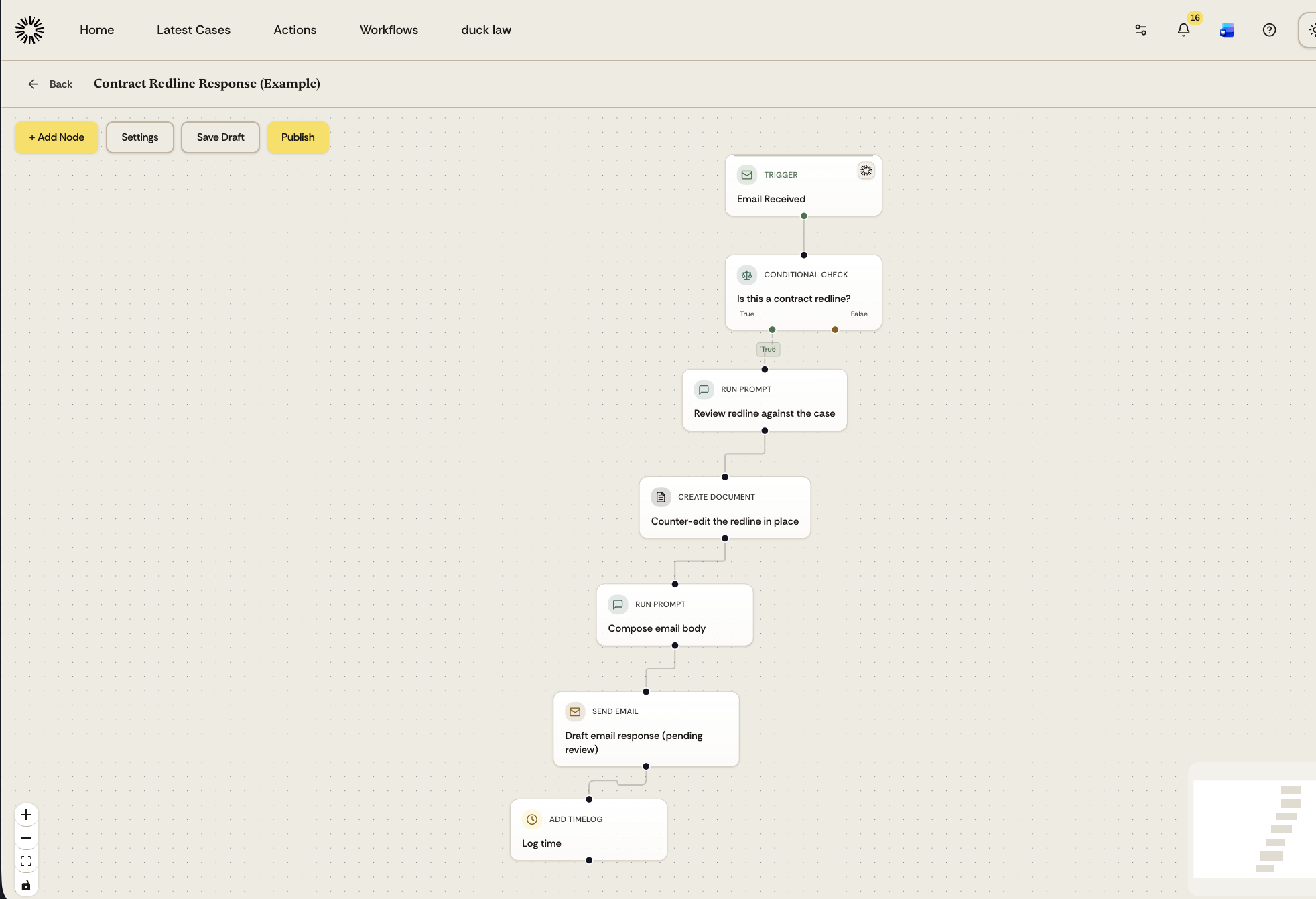
Canvas layout
When you open a workflow, you see:
Node cards: each card represents one step, whether a trigger, an AI task, a document, or a branch
Connection lines: arrows showing the flow from one node to the next
Add Node button: add new steps to your workflow
Settings: configure workflow-level options
Save Draft: save your changes without publishing
Publish: make the workflow available for use in cases
Add a node
Click + Add Node to see all available node types organized by category:
Triggers: start the workflow automatically or manually
AI Processing: run prompts or actions through Andri
Document Creation: generate Word, Excel, PowerPoint, or PDF files
Communication: send emails or record activity
Control Flow: branch, pause, or gate your workflow
Time & Tracking: record billable time and activity, shown when assignments are enabled for your firm
Select a node type to add it to your canvas. You can then configure each node individually.
Connect nodes
Drag from the output of one node to create a line connecting to the next node. Steps then run along the connections you drew.
Some nodes have more than one output. A Conditional Check has a true output and a false output, and an Ask user step has one output per answer option, so the run continues down whichever branch matches the result.
Check what happened on a run
Runs are not shown on the canvas. Open the case where the workflow is activated, click the workflow in the case Workflows list, and Execution History lists each run with its execution reference, the number of steps executed, when it started, and how long it took. Open a run to see the step timeline, including any step that failed or is waiting for approval.
Save or publish
Save Draft keeps your changes without publishing them
Publish validates the workflow and makes it available to activate in cases
Publishing does not give it to your colleagues. Use Share with company from the workflow list for that, as described in Save and publish workflows.
Next steps
Learn about workflow triggers to understand how workflows start, or see AI and document nodes for processing steps.