
Uploading files to your case
Once you've created a case, you can upload documents like contracts, evidence, emails, and other files. Andri processes these files and uses them to answer case-specific questions.
Andri accepts PDF, Word, PowerPoint, Excel, RTF, CSV, HTML and Markdown files, images, email (EML and MSG), audio, video, ZIP archives and XAF files. Most files can be up to 200 MB each, PDFs up to 2 GB, and audio, video, ZIP and XAF files up to 1 GB.
Upload files to your case
Open your case from the cases dashboard.
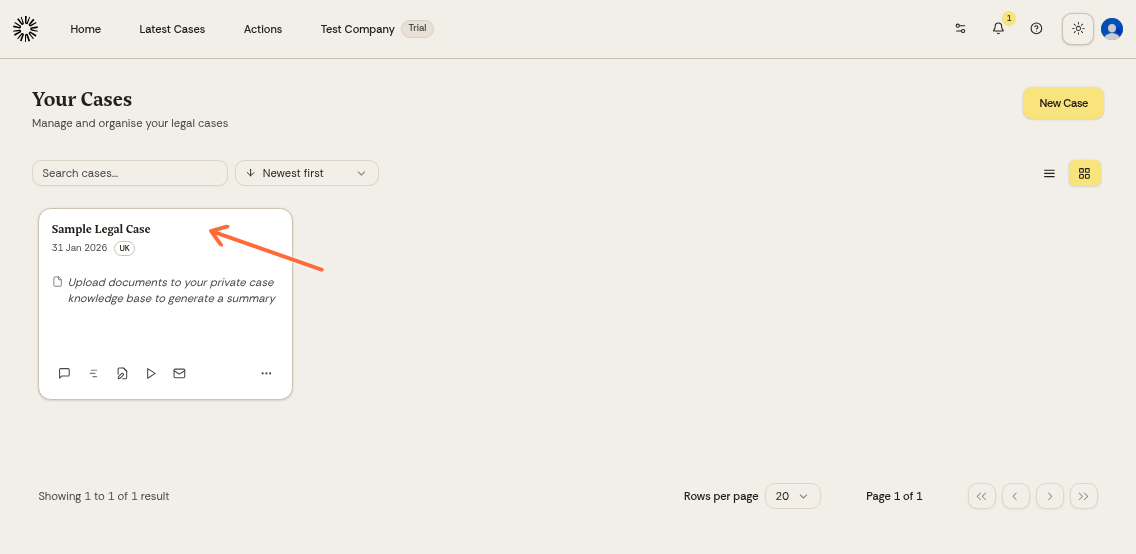
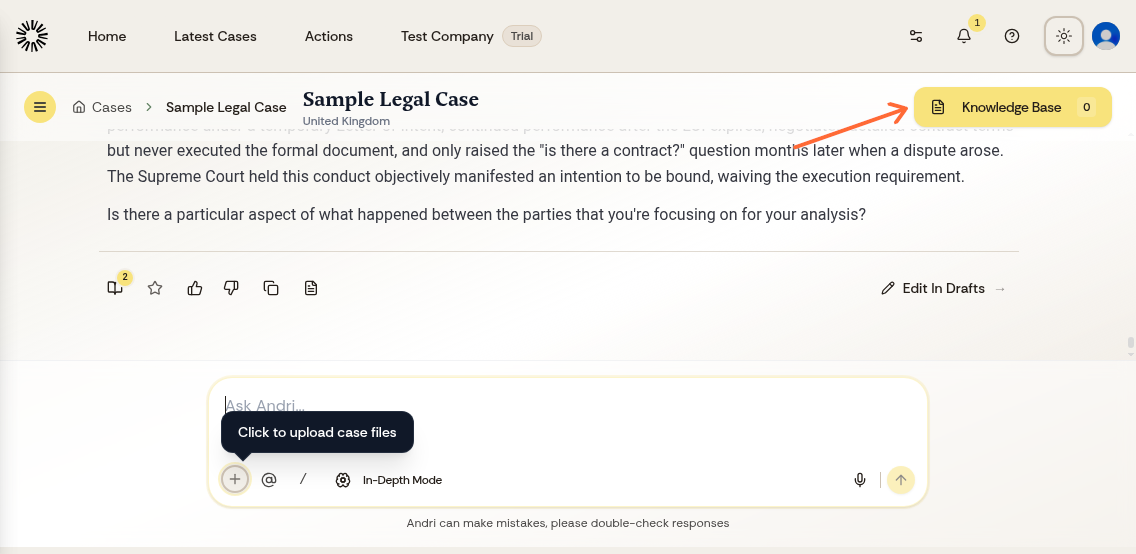
Click the Knowledge Base tab.
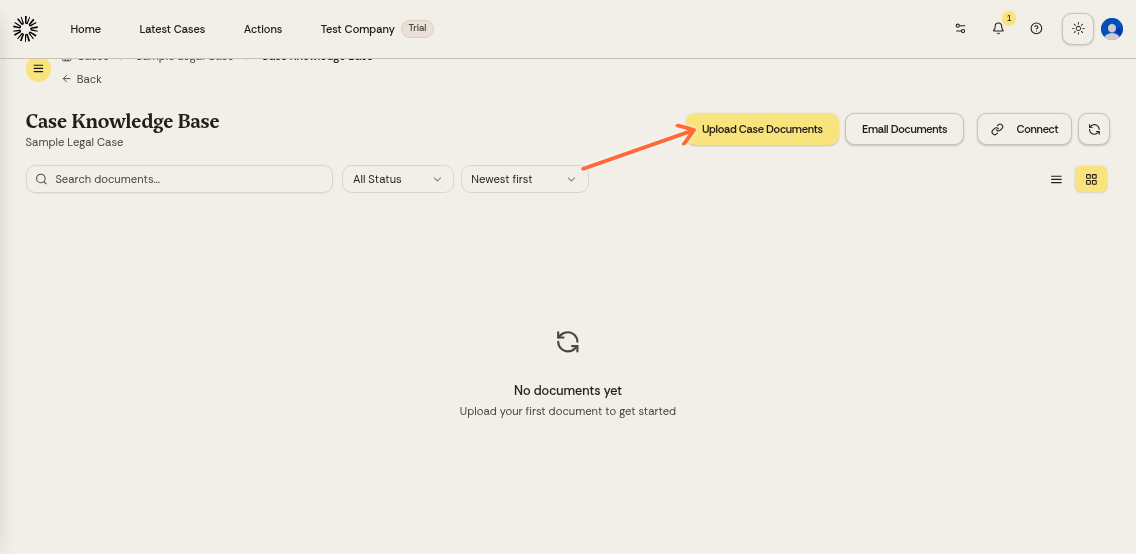
Click Upload Matter Documents.
Click Choose files to upload to select files from your computer, or drag and drop files into the upload area.
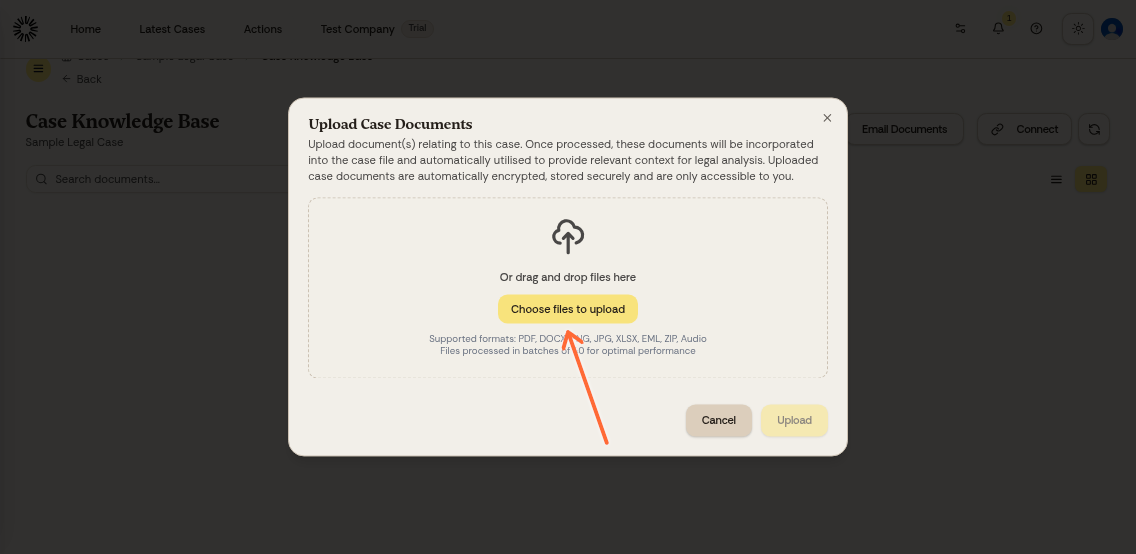
Once selected, click Upload.
Your files will show an "Uploading" status while processing. Once complete, they'll appear in your case knowledge base and Andri can use them to answer questions.
Files that are already in the matter are skipped and crossed out in the dialog, which stays open so you can see what was not uploaded again.
Case files come out of a capacity pool shared by your whole firm. When that pool runs out mid-upload, the rest of the batch is refused and a company administrator has to add capacity before uploading can continue.
On paid plans you can also send documents directly to your case's unique email address instead of uploading through the web interface.
If uploads get stuck
"Uploading" covers the transfer itself and should clear within a few minutes. Keep the tab open until it does, because the page is what finishes the upload. If a file is still marked "Uploading" well after that, delete it and upload it again on a stable connection.
A row stuck on "Uploading" is removed automatically after a day or so, so deleting it yourself is optional.
Processing is a separate and longer stage: large PDFs are read page by page and audio is transcribed, which can take much longer than the upload. Watch the status column in the knowledge base list to follow that work, rather than deleting the file.