
Viewing your cases
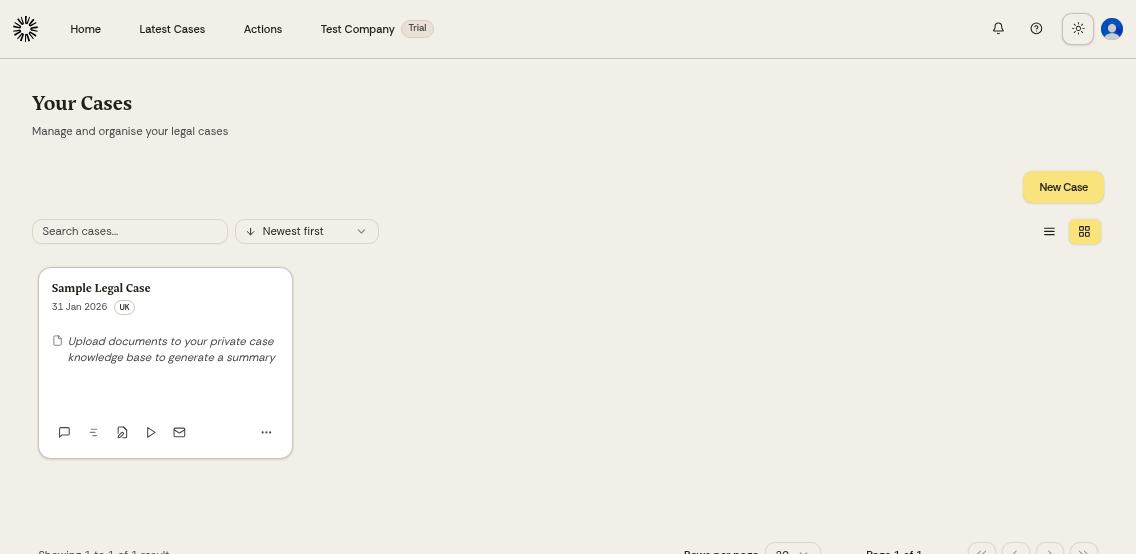
The cases dashboard shows all your legal cases in one place. Each case is a workspace where you organize documents, research, and drafting for a specific legal matter.
Accessing your cases
Click Home in the top navigation to open the cases dashboard. "Latest Cases" in the same bar is a feed of published court decisions, not your own cases, and the bar also holds Actions, Workflows, Assignments and Company.
Finding cases
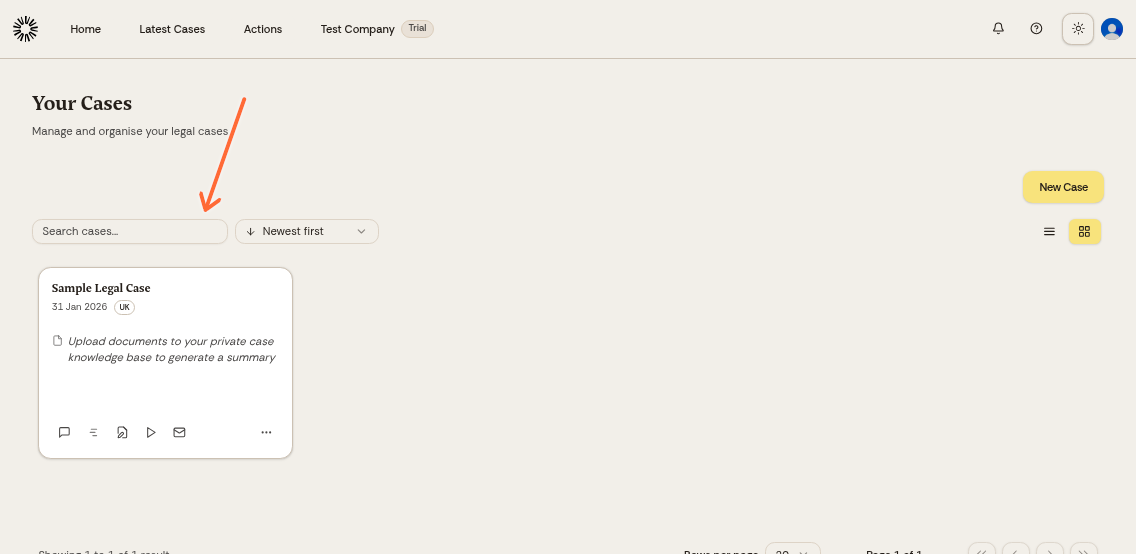
Use the search bar to find cases by name, or change the sort order using the dropdown menu (default is "Newest first"). Andri remembers the sort order you pick.
Creating a new case
Click the yellow "New Matter" button in the top right to create a new case workspace.
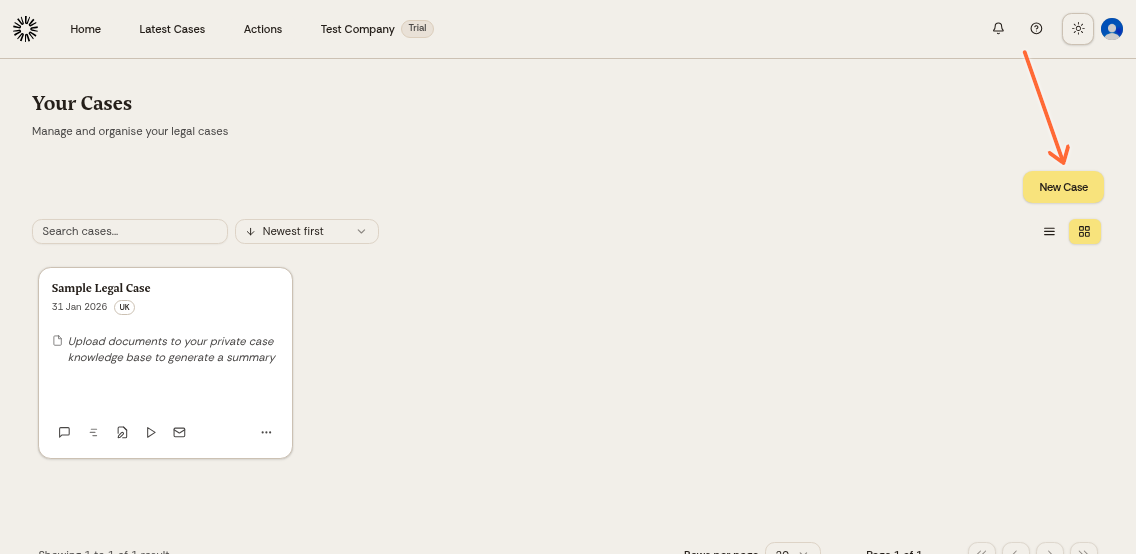
Free trial accounts are limited to one case. Upgrade to create additional cases for different legal matters.
Opening a case
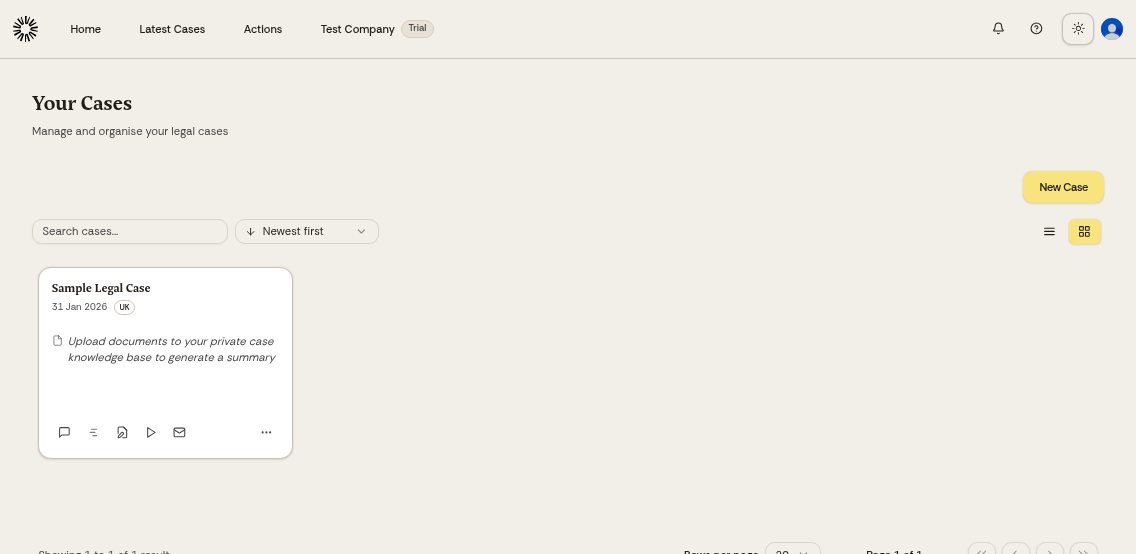
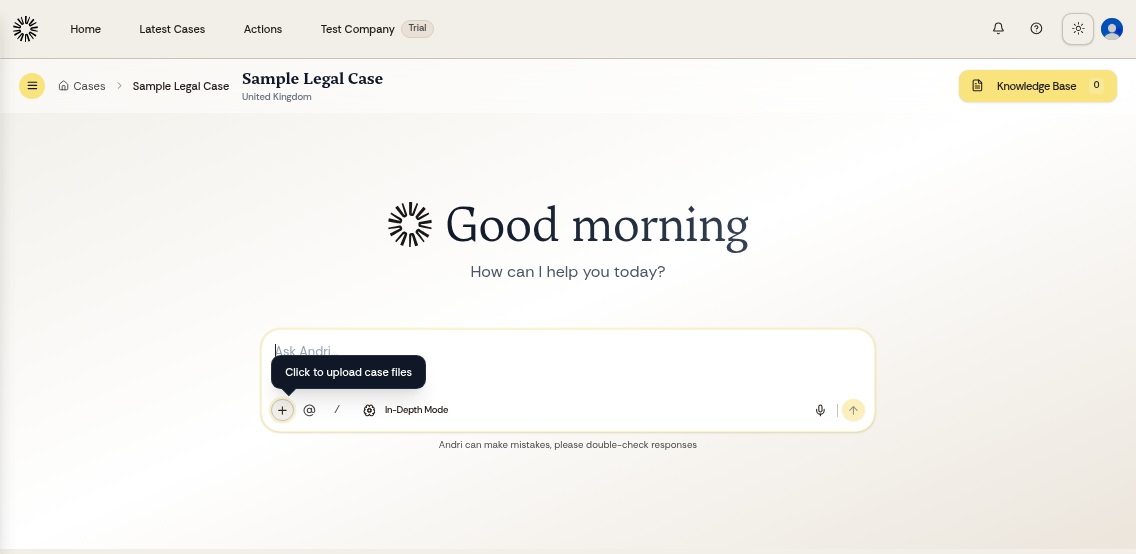
Click any case card to open that case workspace. Inside, you'll see the case knowledge base where you can upload documents, search files, and start your legal research.
Related articles
Once you've opened a case, you can: