
Lock a case to prevent accidental deletion
Locking a case protects it from accidental deletion. When a case is locked, it cannot be deleted from your overview until you unlock it.
How to lock a case
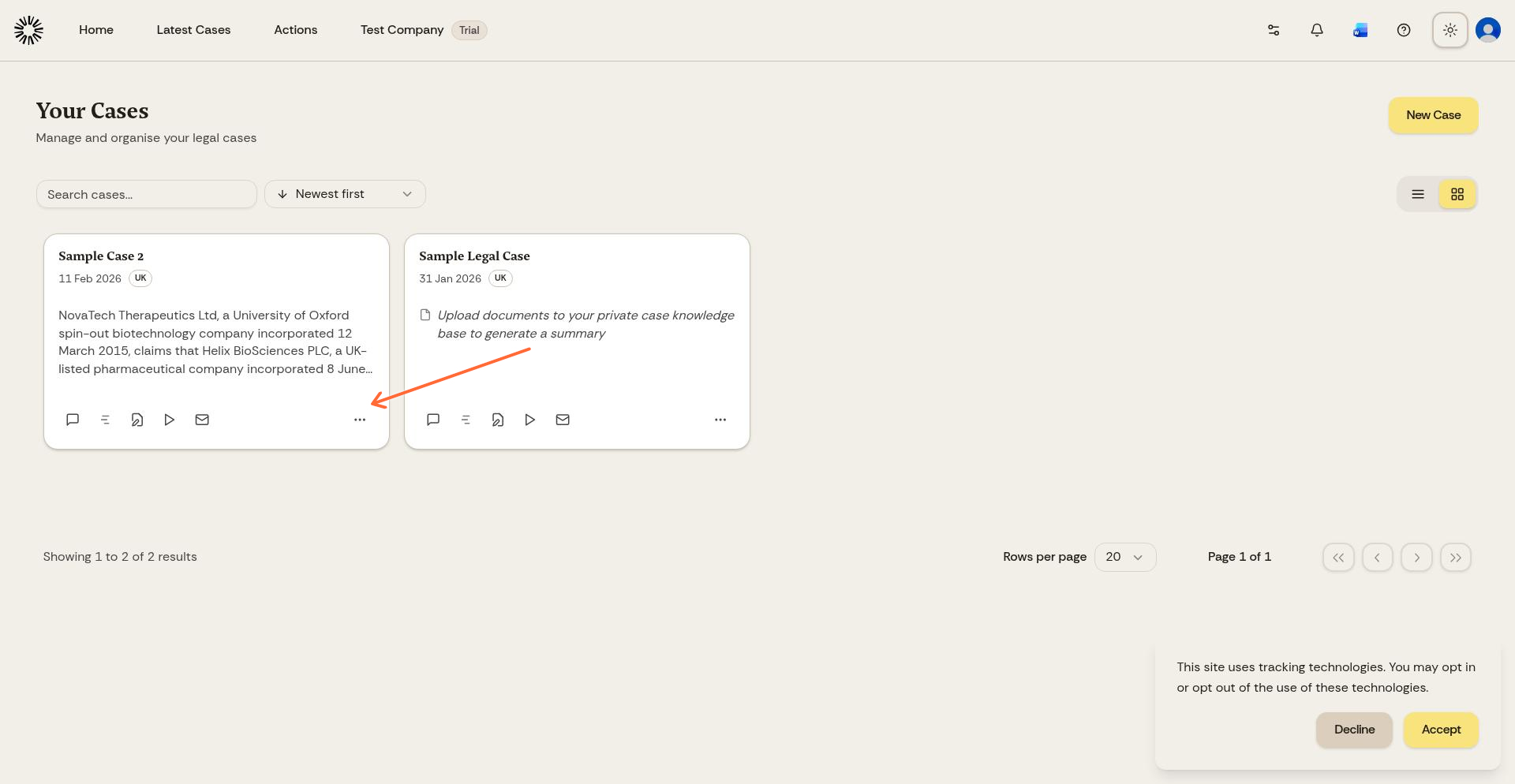
From the home screen, click the three-dot menu on the case card you want to protect.
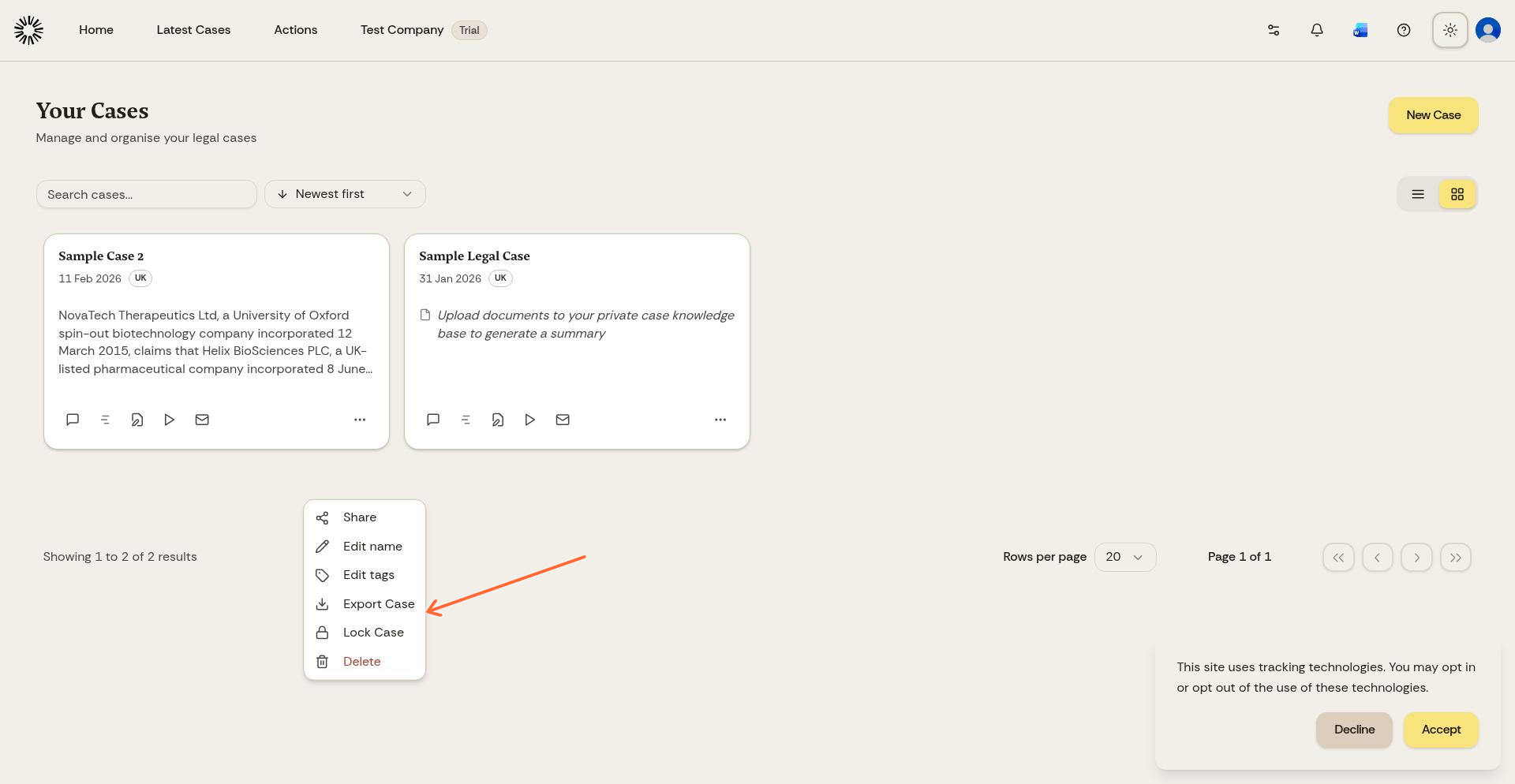
Click Lock Matter in the menu.
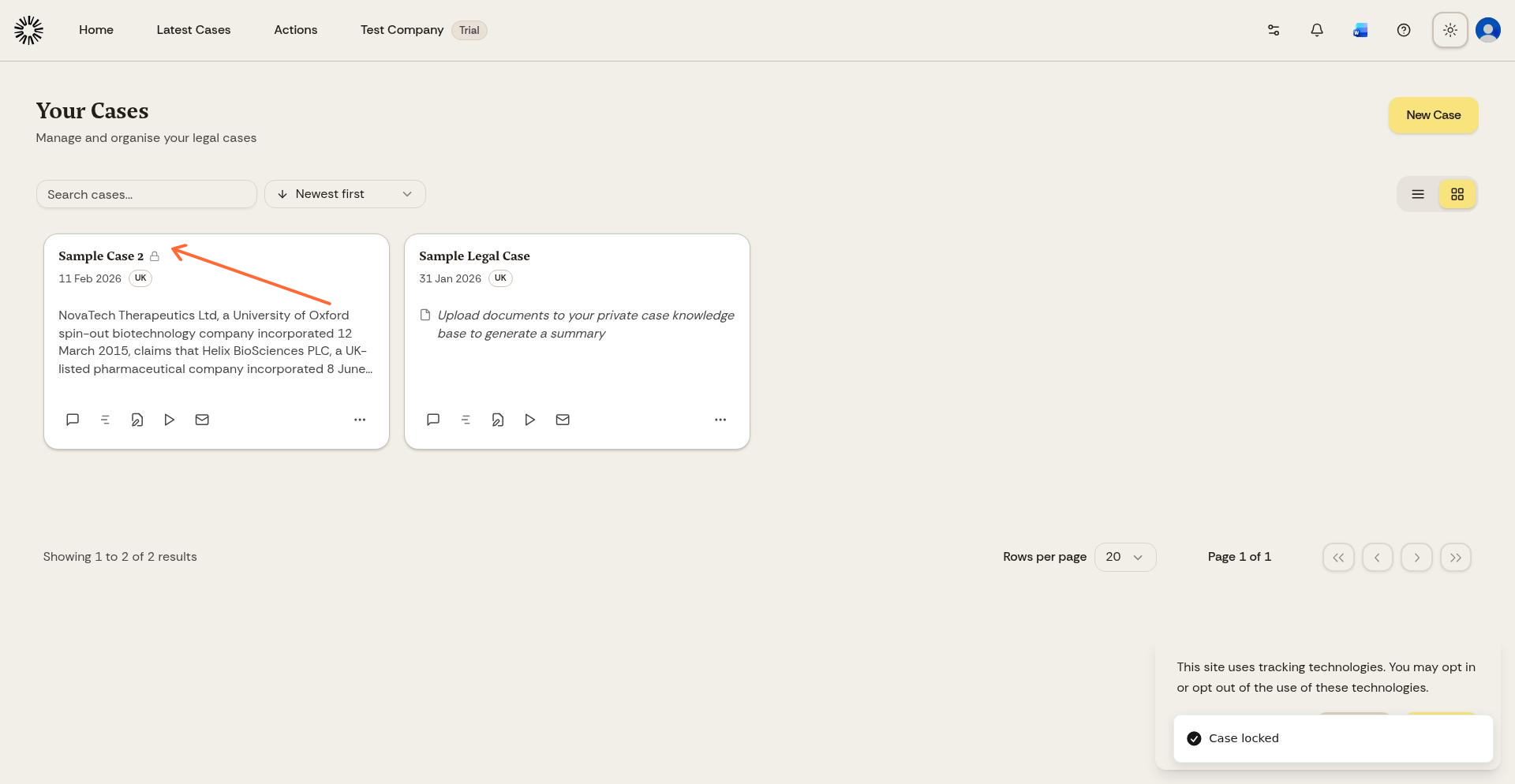
The case is now locked. A lock icon appears next to the case name to show it is protected.
Only the case owner can lock or unlock a case.
How to unlock a case
If you need to delete a locked case, unlock it first. Click the three-dot menu on the locked case and select Unlock Matter.
Once unlocked, you can delete the case following the normal process.
Related articles
Was this helpful?
Was this helpful?