
Exporting cases
Export a case as a ZIP archive holding the documents you uploaded and your full conversation with Andri.
Exporting a case
From your cases dashboard, locate the case you want to export. Click the three-dot menu button on the case card.
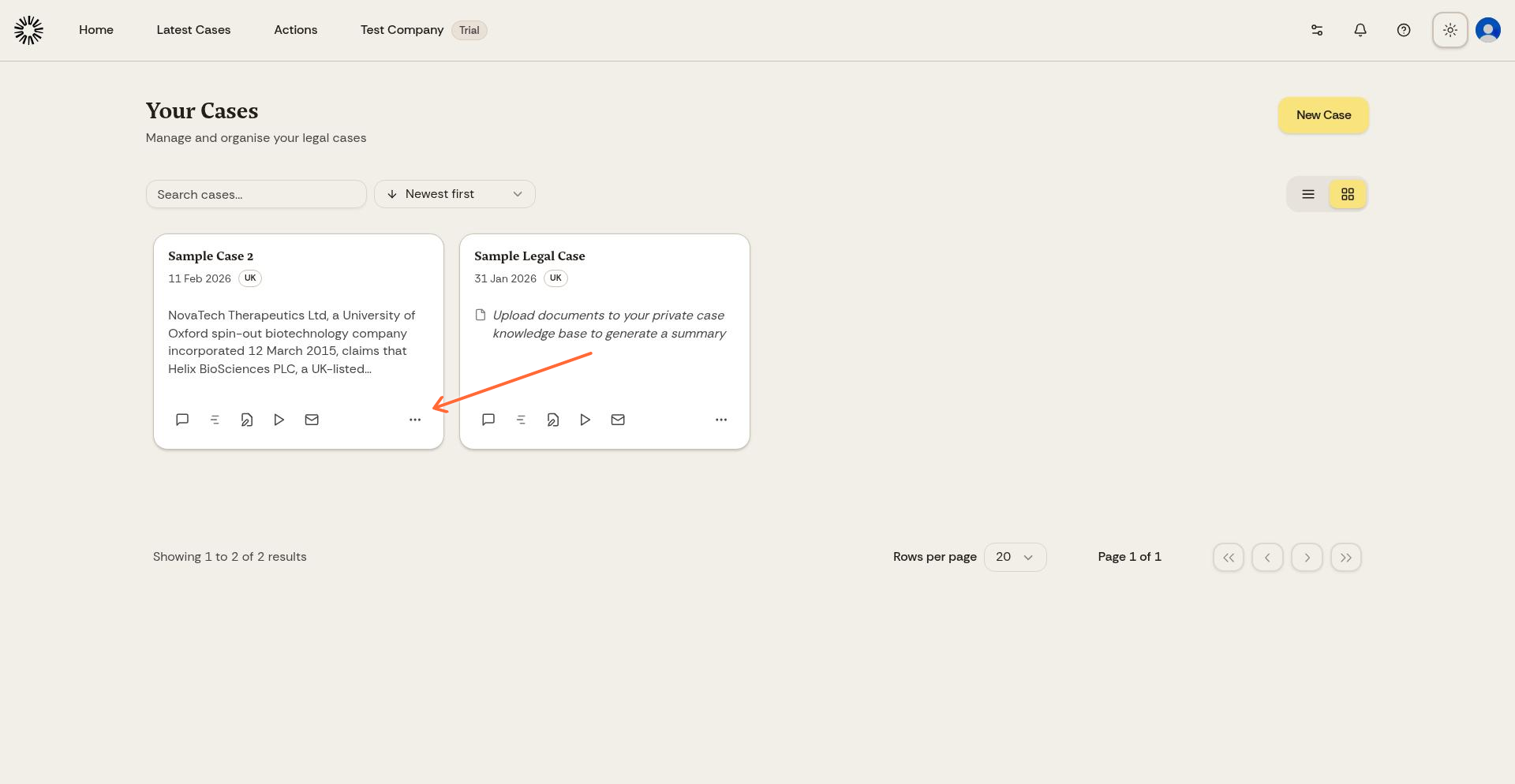
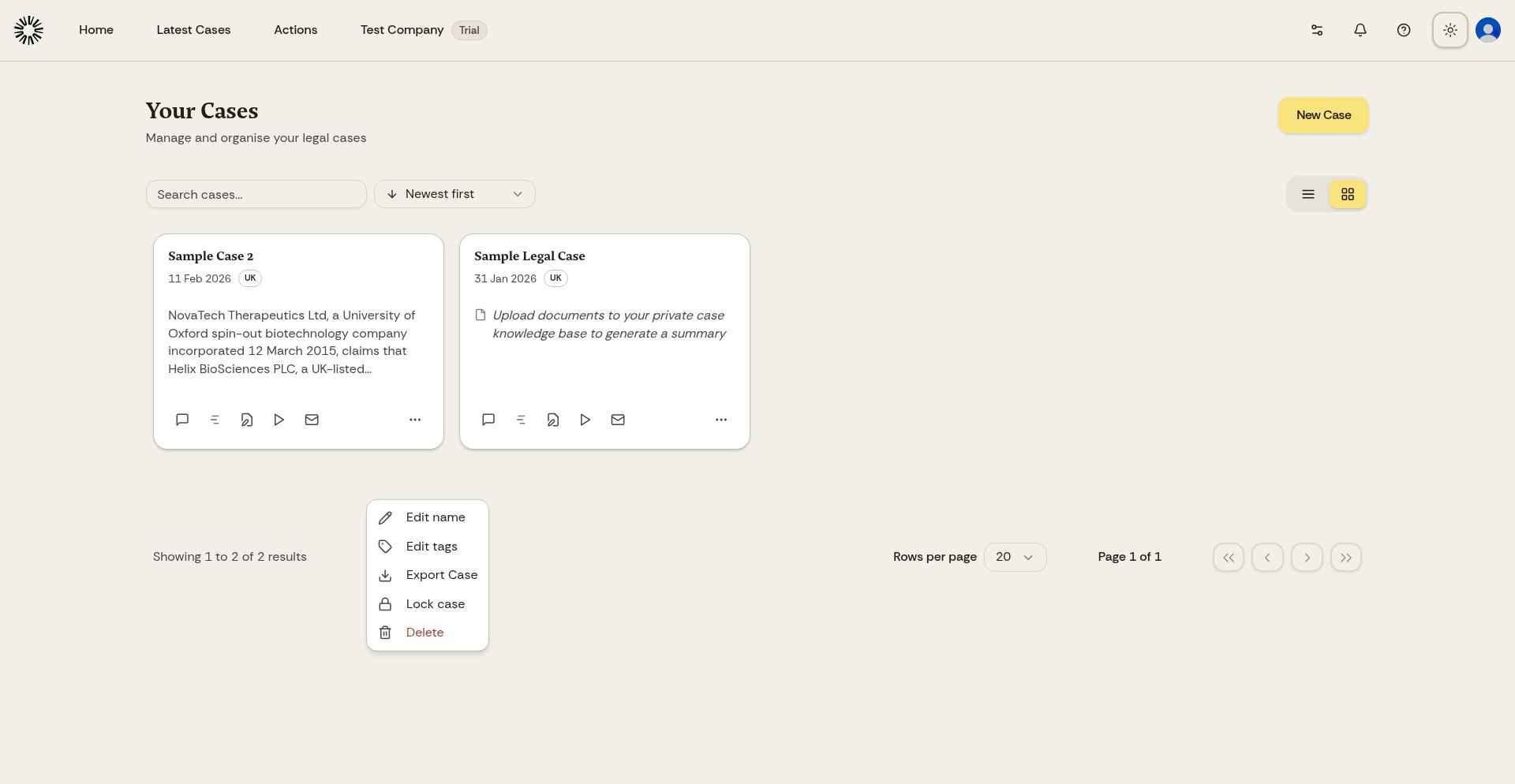
Select Export Matter from the menu.
Starting an export asks you to verify your identity with a second factor, so enable two-factor authentication in your account settings first.
Andri builds the archive in the background, and you can leave the page while it works. When the archive is ready, a Your export is ready dialog and a bell notification both offer Download.
Downloading asks for a second factor again. The link is created when you press Download and is valid for a few minutes, so press it when you are ready to save the file. The archive itself is deleted after seven days, and you can run the export again for a fresh copy.
Anyone the case is shared with can export it, except people with Knowledge Base only access.
What's included in the export
The archive holds three things.
documents/: every file you uploaded, in its original format. Filenames follow the ones you uploaded, with unsafe characters removed and duplicate names given a suffix.conversation.txt: your conversation with Andri as plain text, each message stamped with its date and time. Messages from every thread in the case are merged into one list in time order, without a thread label.README.txt: who ran the export and when, plus counts of the documents and messages it contains.
A document that cannot be retrieved is left out of the archive and counted as unavailable in the README. Drafts, jobs, simulations, document tags, case settings and the audit log are not part of the export.
Use case export to archive completed matters, transfer cases to other systems, or create backups of important legal work.
When to export cases
Export cases when closing a matter for archival purposes, when you need to share complete case files with clients or colleagues, for backup and disaster recovery, or when migrating to different systems.
Exported cases remain in Andri after export. The export creates a copy and does not delete or modify the original case.