
Adding your firm letterhead
Add your firm's letterhead to Andri so you can apply your logo, address, and branding to the documents Andri generates.
Before you begin: You will need a Word document (.docx) with your firm's letterhead template. Any member of your firm can upload it, and you do not need to be an admin.
About letterhead in Andri
Andri uses Word templates in your Company Knowledge Base as letterhead. When you upload a letterhead template, you can apply it to any document you generate through case chat or Actions. The template preserves your logo, fonts, margins, headers, footers, and overall formatting.
Benefits of using letterhead templates:
Your logo, address, and contact details appear on every document you build on the template
Consistent branding across the AI-generated documents you apply it to
Headers, footers, and page numbers follow your firm's layout
A .docx letterhead styles Word output; Excel and PowerPoint need a template in their own format
Step 1: Prepare your letterhead template
Create a Word document (.docx) with your firm's branding. This includes your logo, fonts, colors, margins, headers, footers, and page numbers. Set up everything in Word before uploading to Andri.
We recommend a PNG logo with a transparent background, at least 300px wide.
Upload a complete example document, not just a blank template. Andri learns from filled examples and adapts them dynamically for each case.
Step 2: Upload to your Company Knowledge Base
Go to your company settings and upload the template:
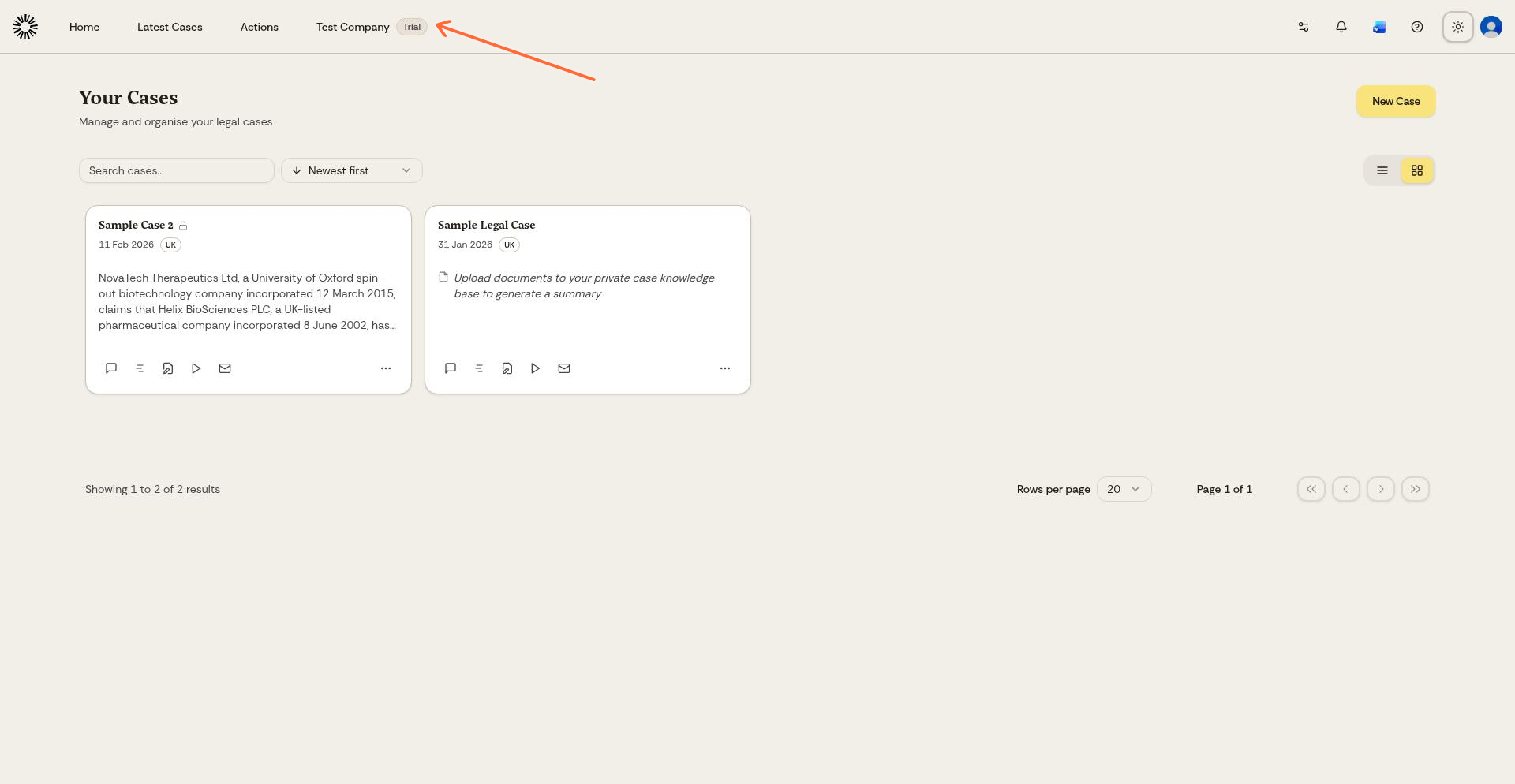
Click your company name in the top navigation bar
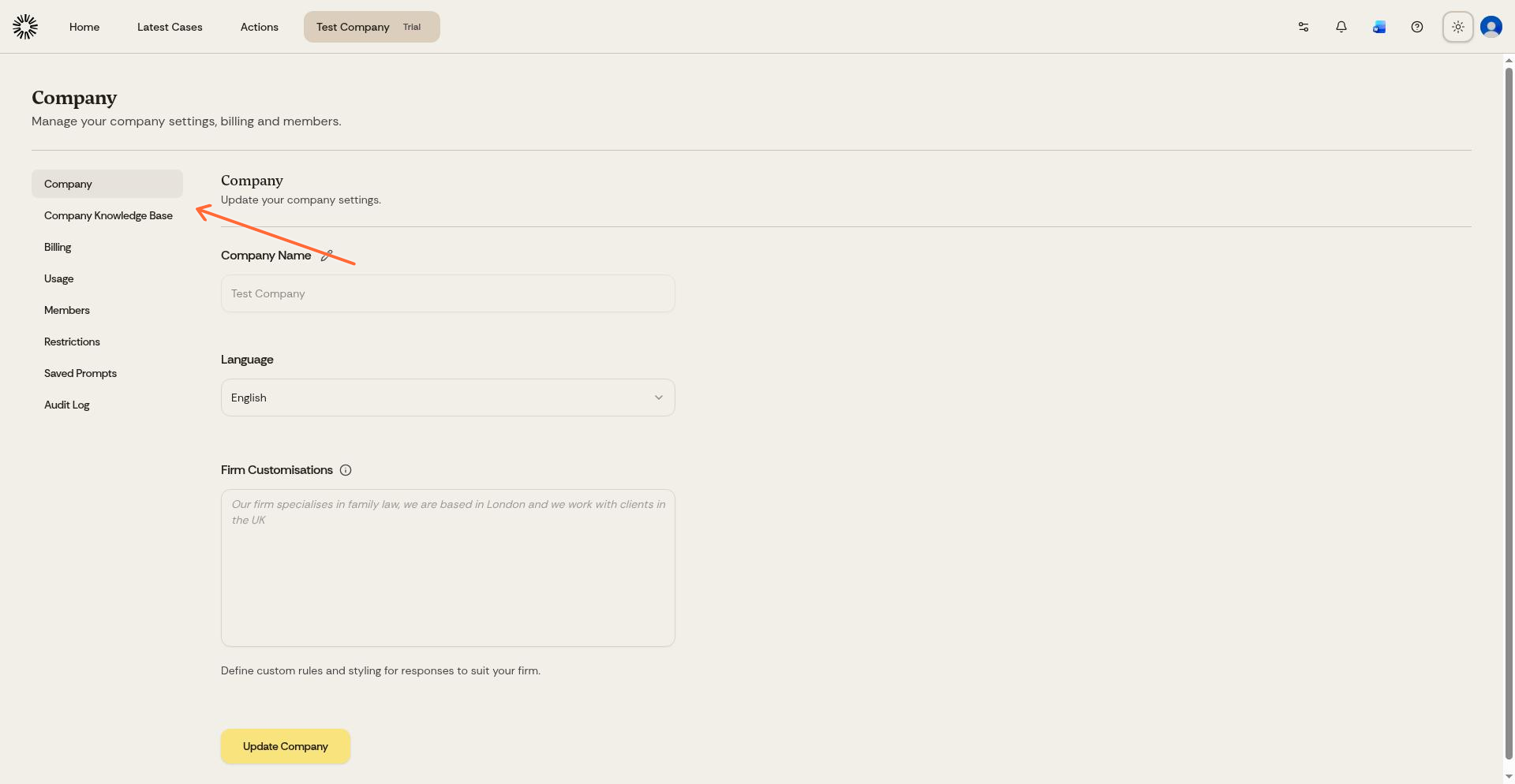
Click Knowledge base in the left sidebar
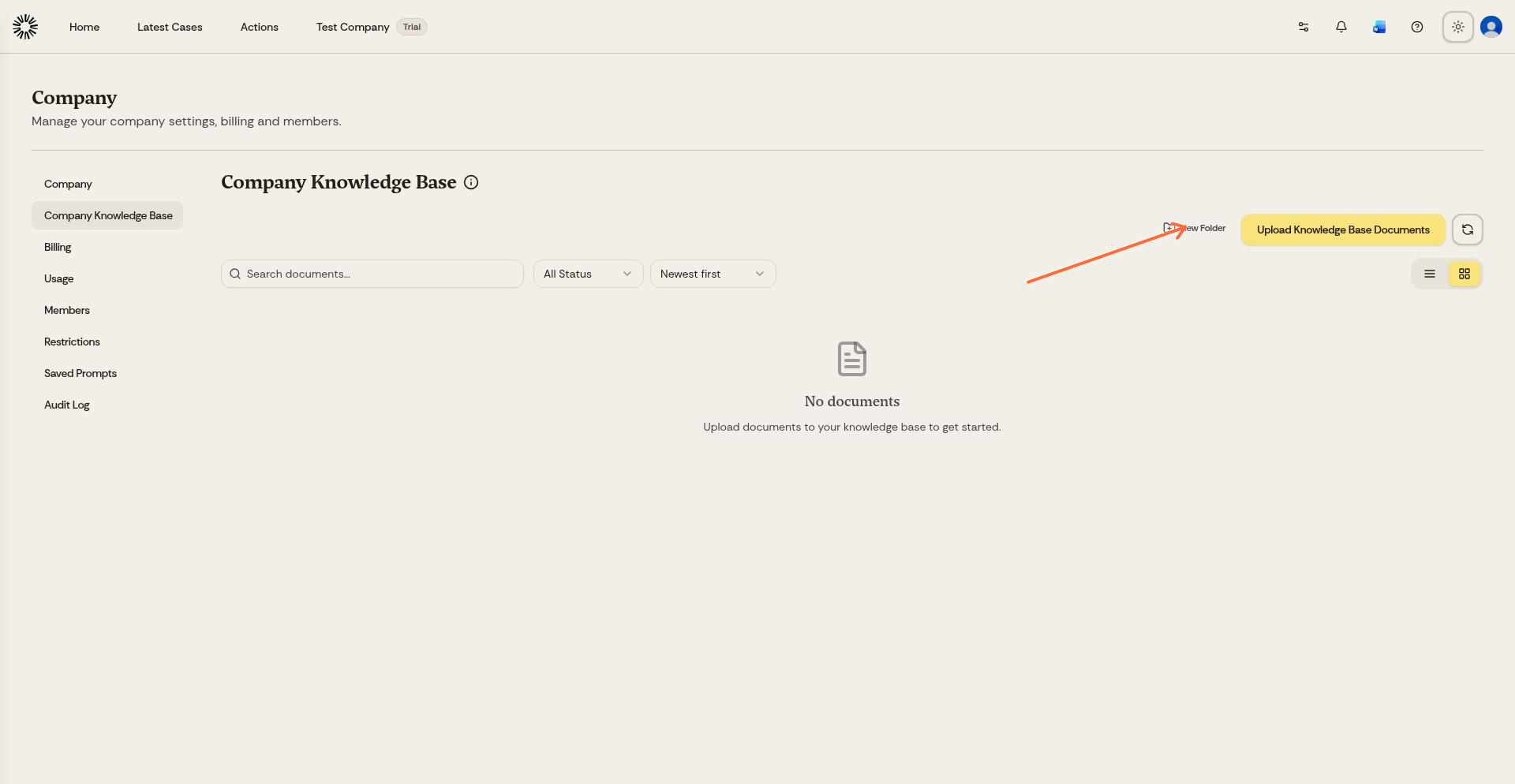
Click Upload Knowledge Base Documents
Select your letterhead Word document (.docx)
Click Upload
After uploading, the template is processed and becomes available across all your cases. Documents are encrypted and are only available to your firm's members inside Andri; see Safety and security for how access is controlled.
Step 3: Use your letterhead in case chat
Apply your letterhead template to any document you generate:
Open a case and go to the chat
Type
@in the chat inputGo to Company Documents (your firm's knowledge base) with the arrow keys or with the arrow icon in the header of the @ menu
Search for your template name (for example, "letterhead" or "firm-template")
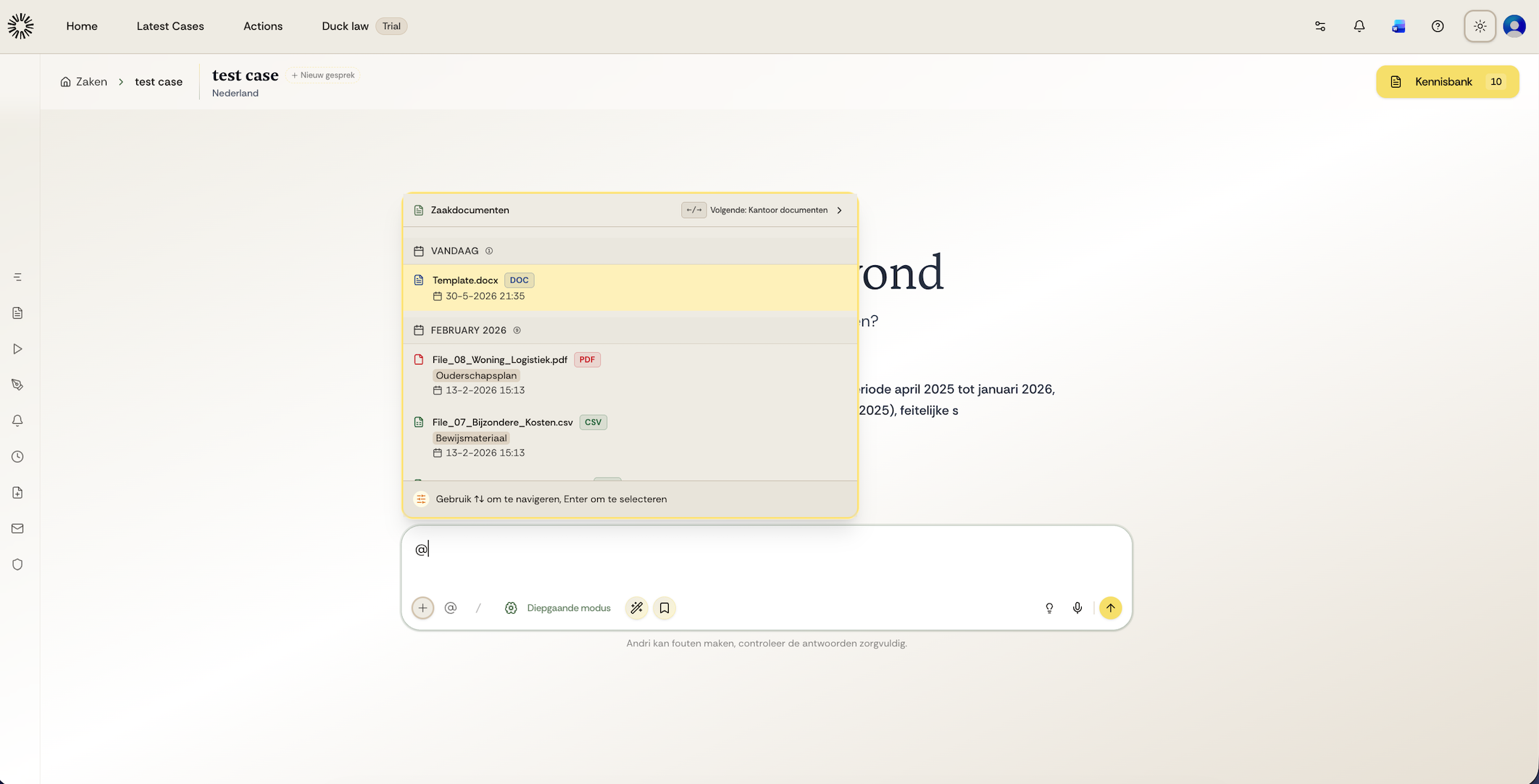
Select your letterhead template from the list
Add your document instructions, for example: "Create a letter to opposing counsel using this template"
Andri generates the document with your letterhead formatting
The AI fills templates intelligently, adding clauses, renumbering sections, and translating content as needed. It does not just fill placeholders.
Customizing firm instructions
In addition to templates, you can set custom instructions for your firm:
Only admins can set and edit Firm Customisations, rename the firm and manage members.
Click your company name in the top navigation bar
In the Firm Customisations field, enter any special instructions for document generation
Click Update Company
Use Firm Customisations to specify preferences like document style, formatting rules, or standard language to include. This is separate from your letterhead template.
Best practices for letterhead templates
Naming: Use clear names like "letterhead" or "firm-template" so team members can find the template easily
Logo quality: Use a high-resolution logo (at least 300px wide) with transparent background for best results
Test documents: Generate a test document after uploading to verify the formatting appears correctly
Update templates: Re-upload your template whenever your branding or contact details change