
Using Actions for workflow automation
Actions are reusable workflows that automate common legal tasks. Create custom Actions for procedures you repeat often, then run them in chat with an @ mention.
Actions are available on the Business plan only.
What Actions do
An Action is a saved set of instructions that Andri executes on demand. Actions can generate documents, analyze case files, create summaries, produce financial reports, or perform any workflow you define.
Unlike one-off prompts, Actions are reusable and can be shared across your firm. This ensures consistency and saves time on repetitive tasks.
Accessing the Actions dashboard
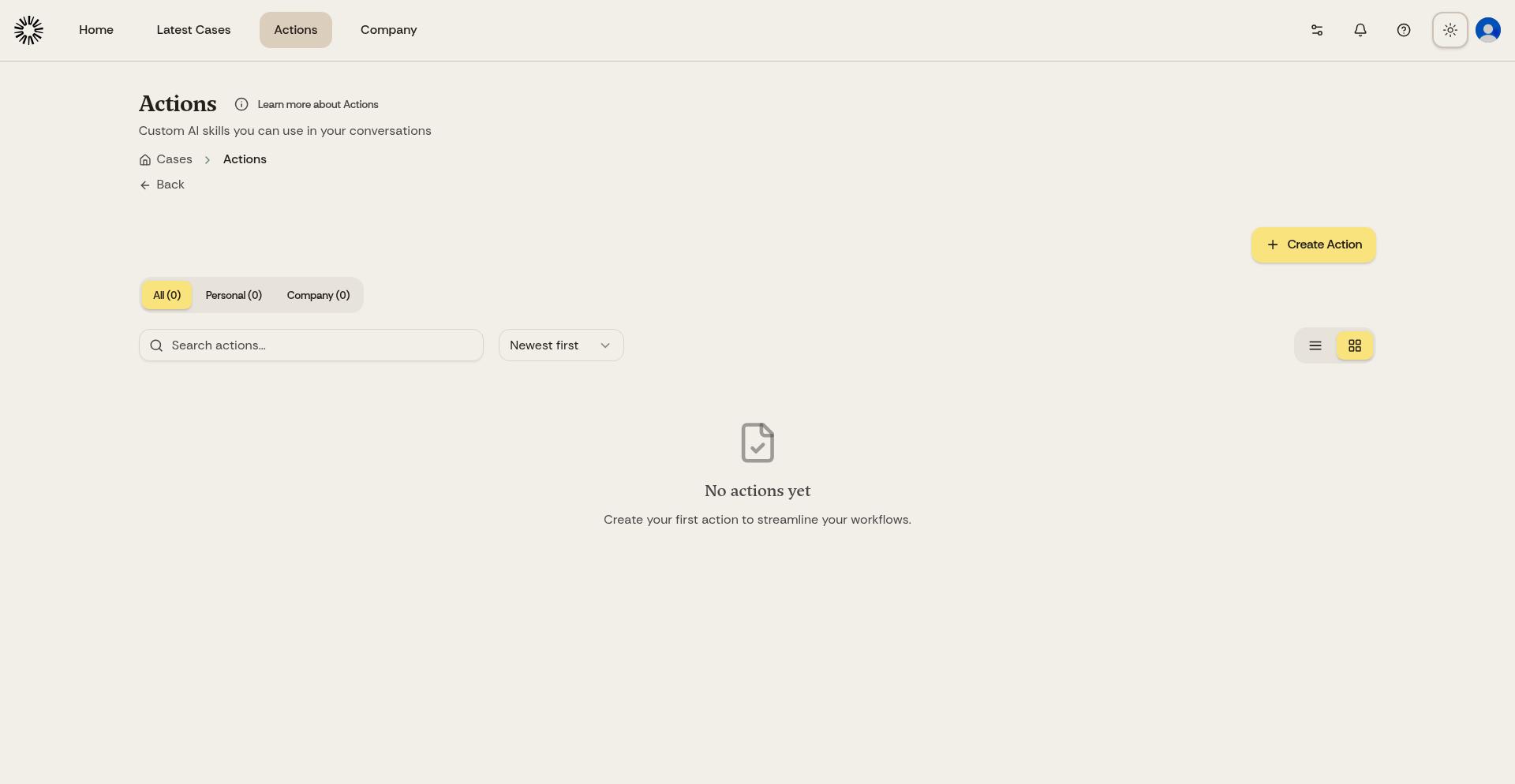
Click Actions in the top navigation menu to view and manage your Actions.
The Actions dashboard shows all Actions available to you, including personal Actions you created and office-wide Actions shared by your firm.
Creating a new Action
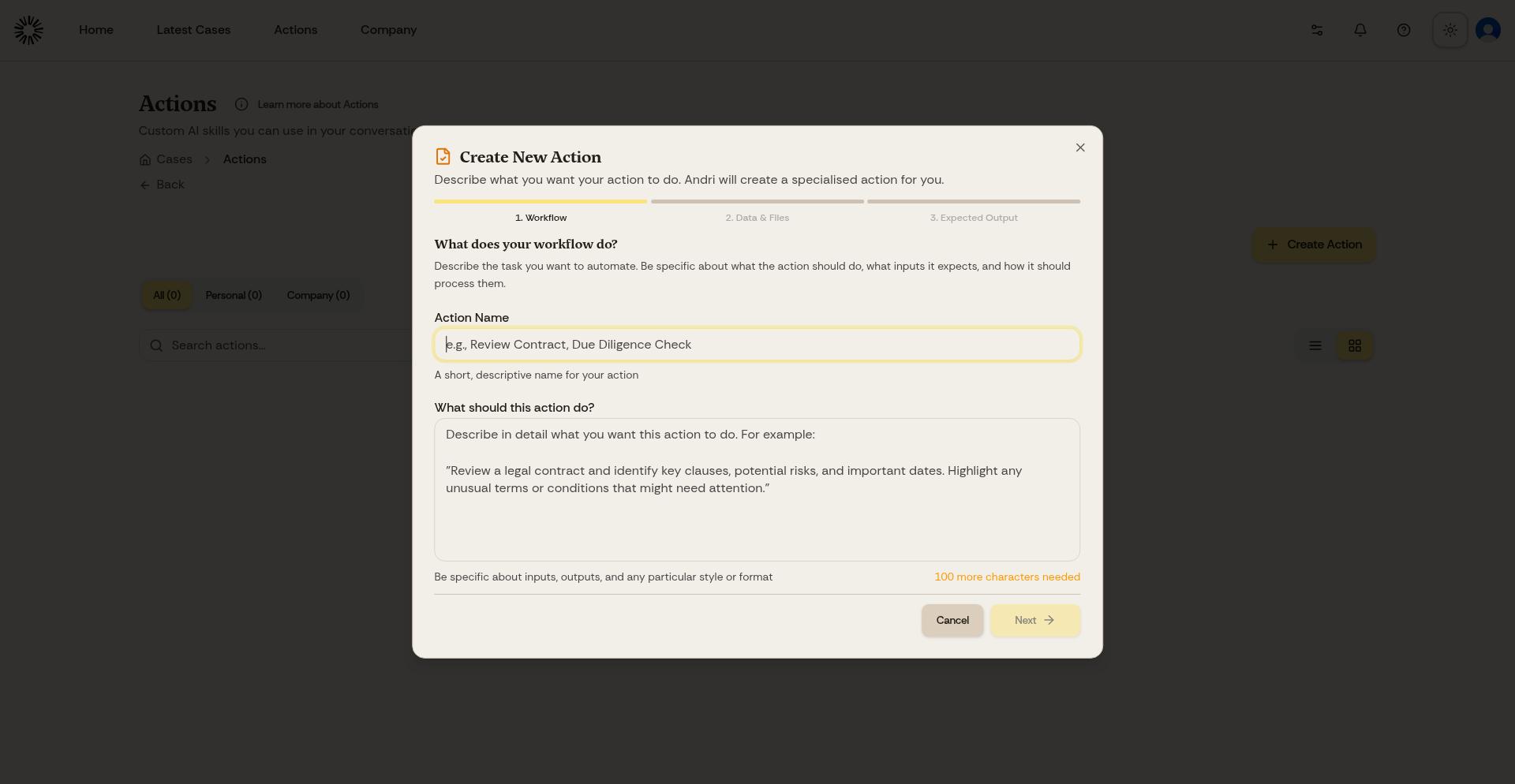
Click Create Action and work through three steps.
Name the Action and describe what it should do. Be specific about the inputs it should expect, the output you want, and any style to follow.
Choose up to five company knowledge base documents the Action should use as reference material, such as calculation models, templates, or data it needs to do its job.
Choose up to three output examples, also from the company knowledge base, that show the format, structure and style you want back.
The output examples decide the shape of the result. Attach them and the Action produces a file in that style; leave them empty and the Action answers directly in chat.
Andri writes the Action in the background, which takes a few minutes. Close the dialog and carry on working: the Action shows as Processing in the table until it is ready to use.
Every Action starts as personal. Use Share with Company on an Action to make it available to the whole firm.
Write Action instructions as if you're describing the task to a colleague. Be specific about what information to include, how to structure the output, and any formatting requirements.
Running Actions
In your case chat, type @, then press the right arrow three times or click Switch dataset until you reach Actions, and pick the one you want.
The Action lands in your message as @[A:action name], and you can combine it with document references in the same prompt.
Andri processes the Action using your case context and knowledge base, then delivers the result according to your Action's specifications.
Example Actions
These read the way an Action description should read.
Distribution list generator: "Create an Excel file listing all creditors with their claims amounts and priority ranking based on bankruptcy documents."
Client update letter: "Draft a Word letter to the client summarizing case progress in the last month, using formal tone and firm letterhead."
Evidence summary: "Generate a PowerPoint presentation summarizing key evidence, organized chronologically with document references."
Managing Actions
Rename an Action as its purpose sharpens, and delete Actions you no longer use to keep your list clean and organized.
Actions vs. templates
Actions are instructions for generating content. Templates are pre-formatted documents that Actions can use for structure. Combine Actions and templates for the most powerful automation: create an Action that uses your template and fills it with case-specific content.
Workflows are a separate feature for automation that runs over several steps and starts from a trigger rather than from an @ mention.