
Mastering @ mentions
The @ mention feature lets you point Andri at exactly the material you want it to use: documents, folders, document tags, actions, assignments, and earlier conversations in the case.
How @ mentions work
In your case chat, type @ or click the @ button to open the mentions menu. As you type, Andri filters the list to show matching items.
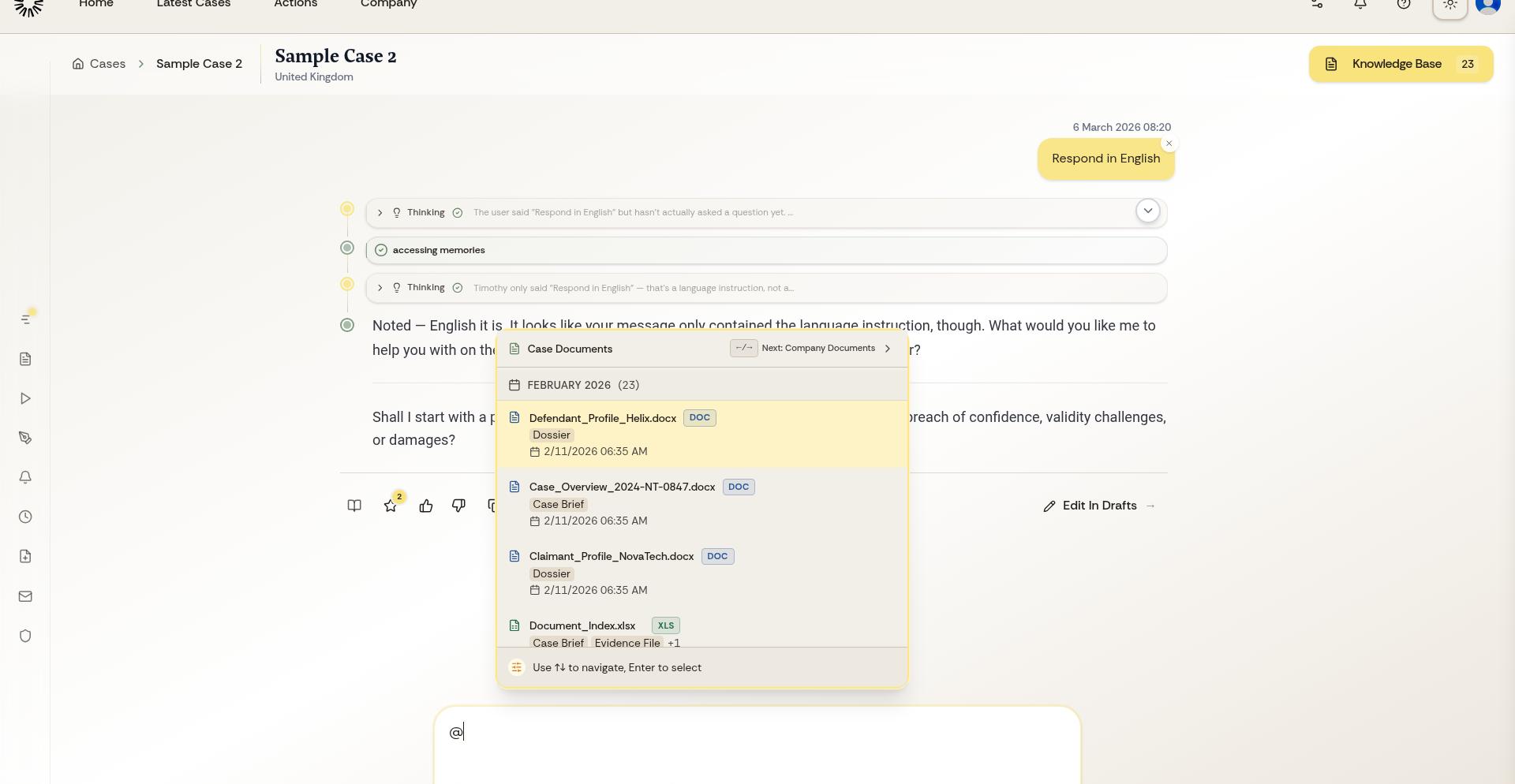
The up and down arrows move through the list, and Enter, Tab or a click inserts the highlighted item. The left and right arrows move between the lists.
The menu opens on Matter Documents. Press the right arrow three times to land on Actions, then press Enter to insert the one you want.
What you can @ mention
The menu holds six lists, and you move between them with the left and right arrows or the arrow button in the menu header.
Matter Documents: files in this case's knowledge base. Example: "@contract.pdf what are the payment terms?"
Company Documents: your firm-wide knowledge base, including standard templates and your letterhead. Example: "find our standard engagement letter"
Document Tags: every document carrying a tag, in a single reference, so you can pull in "all correspondence" without naming each file.
Actions: run a workflow you or your firm created. Example: "@create-distribution-list generate for this bankruptcy case"
Assignments: reference an assignment on this case, when assignments are enabled for your firm.
Threads: reference an earlier thread in the case so Andri can build on what was said there.
Folders work the same way as files: pick a folder in either knowledge base and Andri includes everything inside it.
Using @ mentions for better responses
Mentioned files get priority in Andri's analysis, but they do not shut out everything else. Andri can still cite other documents and case law where they are relevant.
For multi-document analysis, mention multiple files in one prompt: "Compare @contract-v1.pdf and @contract-v2.pdf and highlight all changes."
@ mentions work with partial names. Typing "@contr" shows all documents with "contr" in the filename, making it quick to find the right file.
Reaching your company knowledge base
The menu opens on this case's documents. Press the right arrow once, or click the arrow button in the menu header, to move to Company Documents, then choose the document or folder you need.
The reference goes into your message like any other mention, so you can combine a company document with case files in the same question.
Running Actions with @
Actions are reusable workflows for common tasks. When you @ mention an Action, Andri runs it using your case context. Depending on how the Action was built, the result is a generated Office file or a written answer.
Create personal Actions for tasks you repeat often. Use @ to run them instantly without rewriting complex prompts.