
Viewing and managing documents
Andri provides tools to view, manage, and interact with every document in your case knowledge base.
Accessing document actions
From your case workspace, navigate to the Knowledge Base section. Each document has a dropdown menu with available actions.
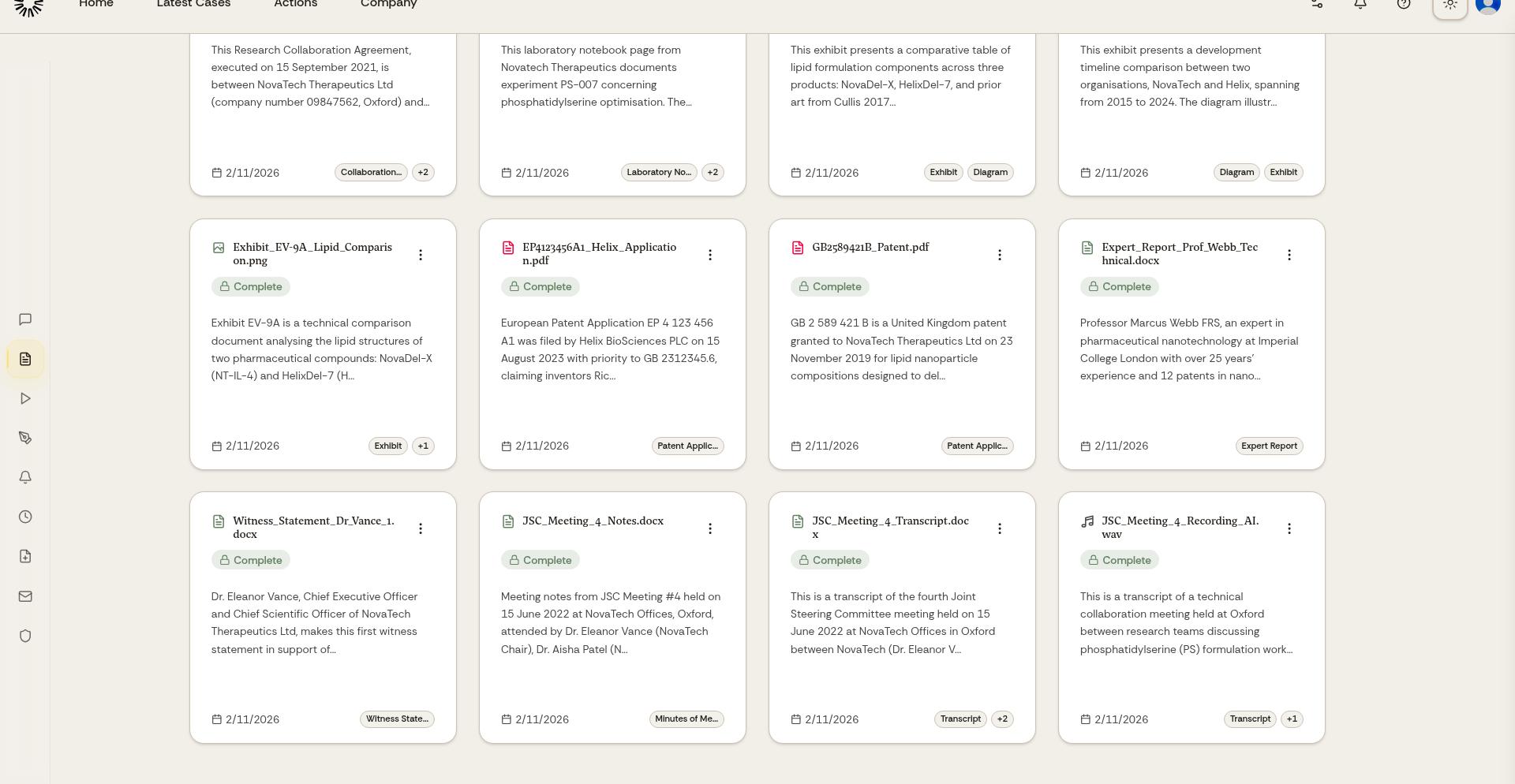
Click the dropdown arrow next to any document for Download, Edit Tags, View Metadata, Move to, Rename and Delete. These actions become available once the document has finished processing.
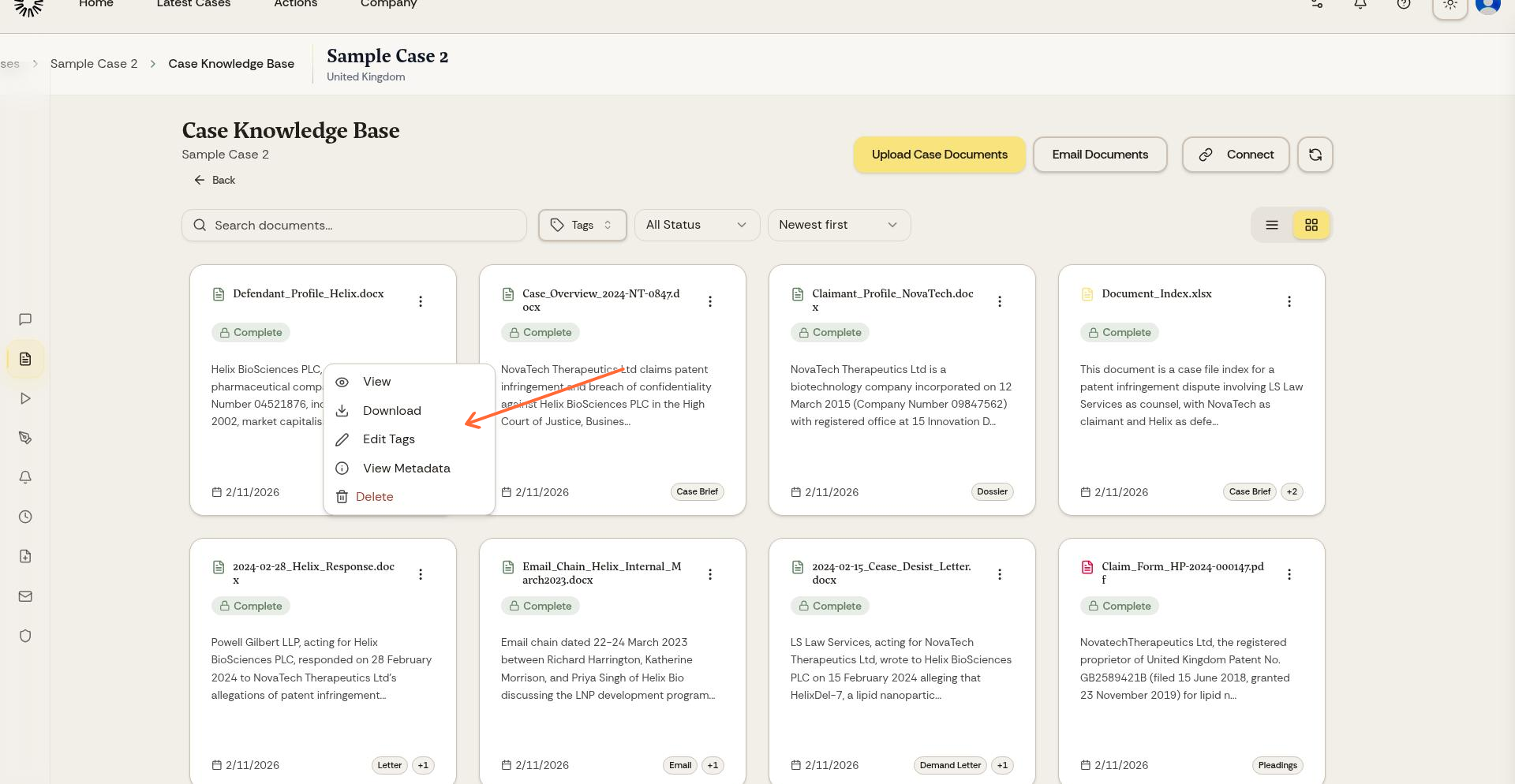
Viewing documents
Click a document row to open it in Andri's built-in viewer. The viewer displays PDFs, Word documents and images in your browser without downloading, and plays audio files next to their transcript.
When you need the same answer out of many documents at once, run a tabular review rather than opening them one by one.
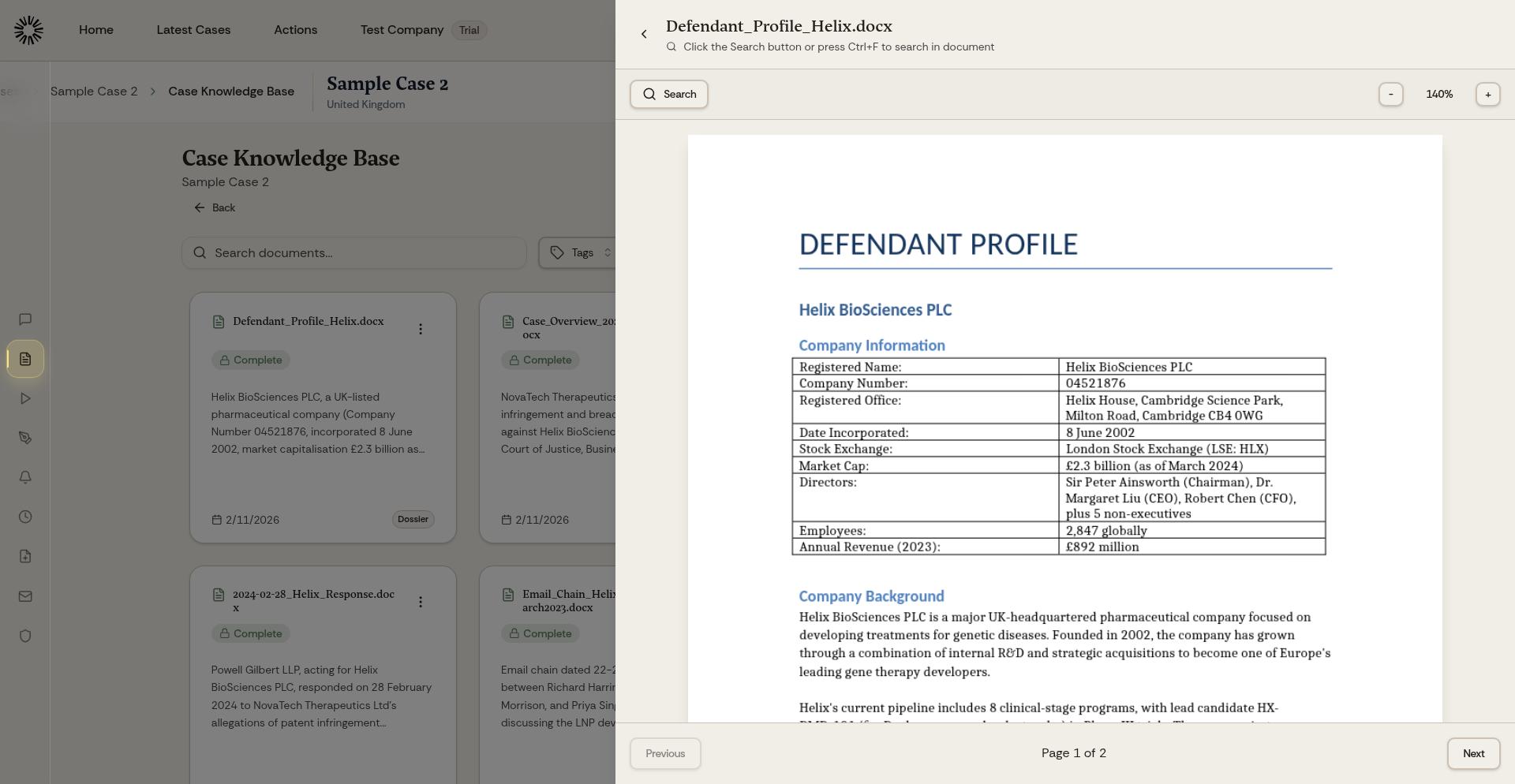
Use the document viewer to quickly reference content without leaving Andri or opening external applications.
Downloading documents
Select Download to save a copy of the document to your local device. The document downloads in its original format and filename.
Deleting documents
Select Delete to permanently remove a document from your case knowledge base. Once deleted, the document cannot be recovered and will no longer be available to the AI for analysis or citations.
To clear out several at once, select them in the list and delete the selection, up to 100 documents per go.
Deleting a document is permanent. Make sure you have a backup before removing important case files.