
Using document tags
Document tags help you organize and quickly find specific files in your case knowledge base. Tags make it easier for you and the AI to locate relevant documents.
Adding tags to documents
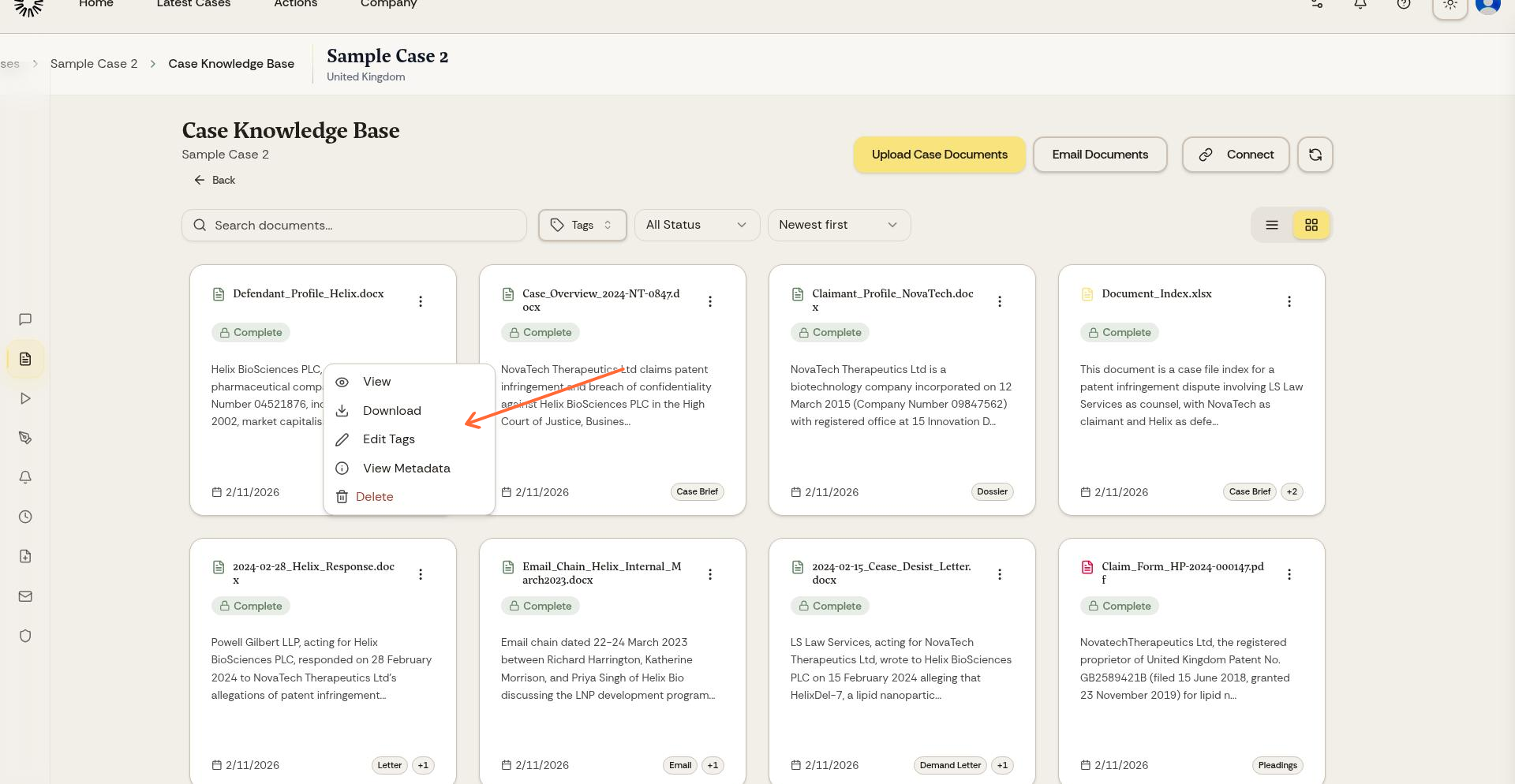
From your Knowledge Base, click the dropdown menu next to any document and select Edit Tags.
The tag editor opens, allowing you to add new tags or modify existing ones.
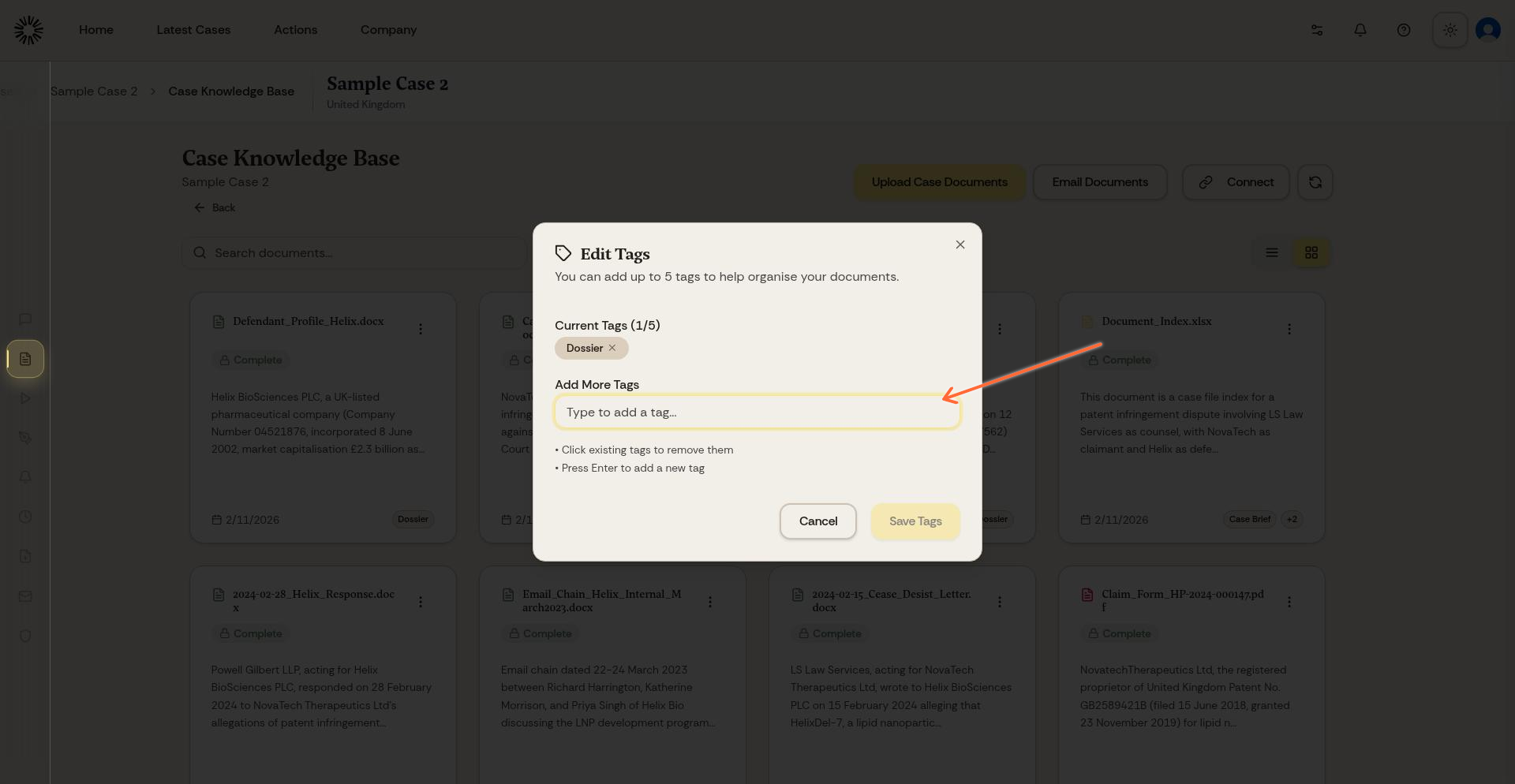
Type a tag name in the input field and press Enter to add it. Click the X next to any tag to remove it. A document holds five tags at most.
As you type, the editor offers tags already used on other documents in the same case, which keeps your names consistent.
To tag a batch, select several documents in the Knowledge Base and open the tag editor. It starts from the tags they already share, and what you add applies to the whole selection.
Use descriptive tags that say what a document is in the case, such as Evidence File, Expert Report, Settlement Agreement or Letter.
Tags Andri adds for you
Andri tags every document while it processes it, picking one to three names from a fixed list of legal document types for your jurisdiction: Pleadings, Evidence File, Witness Statement, Expert Report, Judgment, Court Order, Affidavit, Settlement Agreement, Legal Opinion, Email, Letter, Memo and similar. There is nothing to accept. The tags are on the document by the time processing finishes, and you can remove or replace them in the tag editor.
How tags improve AI search
Tags are part of the context Andri sees for each document, alongside its summary and metadata, so they help it tell your files apart.
For example, tagging contracts as "Settlement Agreement" and correspondence as "Letter" helps the AI distinguish between different document types when answering questions.
Searching by tags
Type @ in the chat input and switch to the Document Tags dataset to point Andri at every document carrying a given tag. This scopes the question precisely, because you are selecting the documents rather than describing them.
You can also name a tag in the prompt itself, for example "Summarize all documents tagged Expert Report".
Tag best practices
Write your own tags the way Andri writes its own, in title case, so that manual and automatic tags stay one vocabulary rather than splitting into "Evidence File" and "evidence file". Agree a standard set of tags for your firm and use them across cases. Keep them few: five per document is the limit, and two to four is usually enough.