
Connecting cloud storage
Connect SharePoint, OneDrive or Google Drive to a case and bring files from cloud storage into its knowledge base.
You connect a data source per case, and only the case owner can connect or disconnect one.
Connect a data source
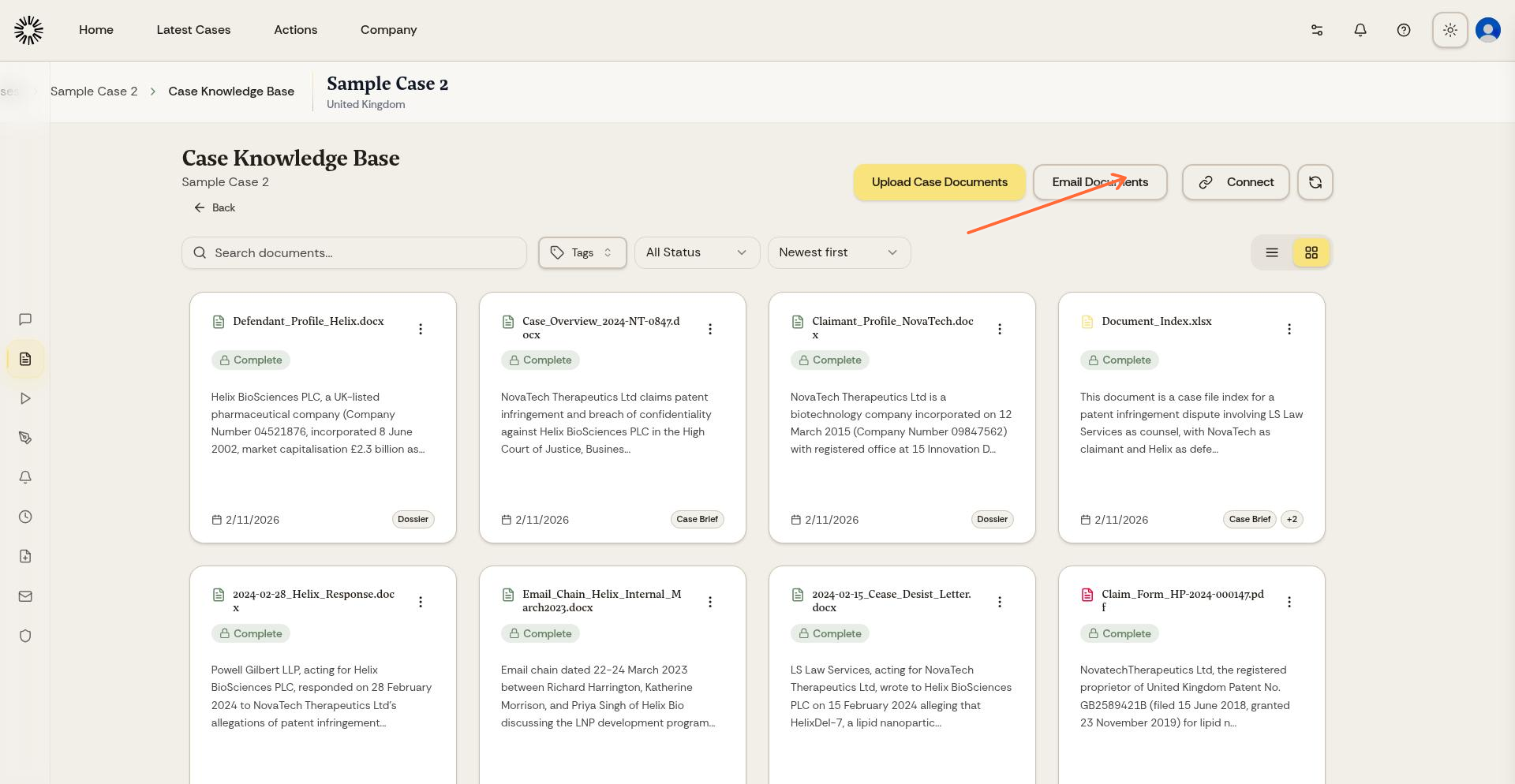
From your case Knowledge Base, click the Connect button to see available cloud storage options.
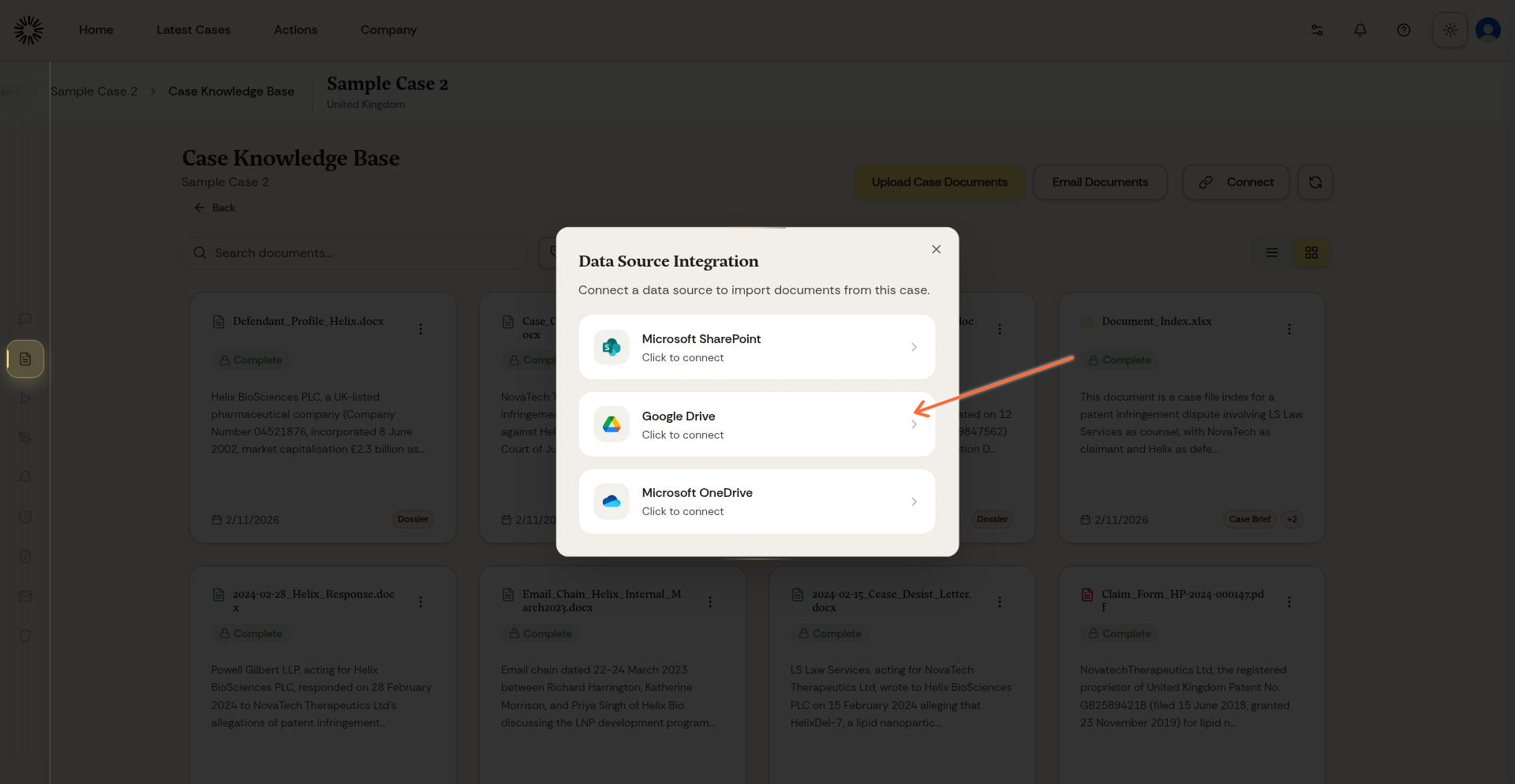
Select the cloud storage service you want to connect.
Sign in with your account when prompted and grant Andri permission. Sign-in opens in a popup window, so allow popups for app.andri.ai if nothing appears.
Search SharePoint without importing
Once SharePoint is connected, Andri can search your SharePoint and open the files it needs while working on the case. Nothing is copied into Andri unless you import it.
Only the case owner can use SharePoint search in chat. Colleagues you share the case with see the files you imported, not your SharePoint. OneDrive and Google Drive are import only.
SharePoint and OneDrive: import folders and files
After signing in, choose the folders you want, and Andri imports the files inside them. In OneDrive you can also select individual files.
For SharePoint, pick the site and document library first. The list holds the sites you have access to in SharePoint.
Each import is a one-time copy, and nothing arrives in the background afterwards. The connector shows how many folders you imported and when the import last ran. Click Import Now to run it again and pick up files added since.
Google Drive: import documents
Google Drive works by document. Open Google Drive from the connector, choose the documents you need, and Andri imports a copy of each one. You can select several at once, and open a folder to reach the documents inside it, but folders themselves cannot be imported.
Imported Google Drive files are copies. Changes you make in Drive afterwards do not reach Andri, so import the file again when you need a newer version.
Importing files from cloud storage
Andri imports only the file types it can process. Anything unsupported in your selection is skipped, and the rest are copied into the case knowledge base and analysed. See which file types you can upload for the full list.
When authorisation expires
Authorisation does not last forever. When it lapses, the connection shows Authorisation expired and Andri cannot read your documents until you click Reconnect and sign in again.
Disconnecting cloud storage
Open the case Knowledge Base, click Connect, then click the trash icon on the connected service. This removes the integration from that case only; your other cases keep theirs.
Disconnecting cloud storage doesn't delete imported files from your cases. It only prevents future imports until you reconnect.