
Working with Drafts
The Drafts feature provides a powerful Word-like editor where you refine AI-generated content before finalizing documents. Unlike chat responses, drafts give you full control over formatting, structure, and styling with context-aware AI editing that improves specific sections without regenerating entire documents.
Before you begin: Drafts currently supports Word documents only (DOCX format). Exported drafts automatically include your firm's house style.
Accessing the Drafts Section
From your case workspace, open the left sidebar menu and click Drafts.
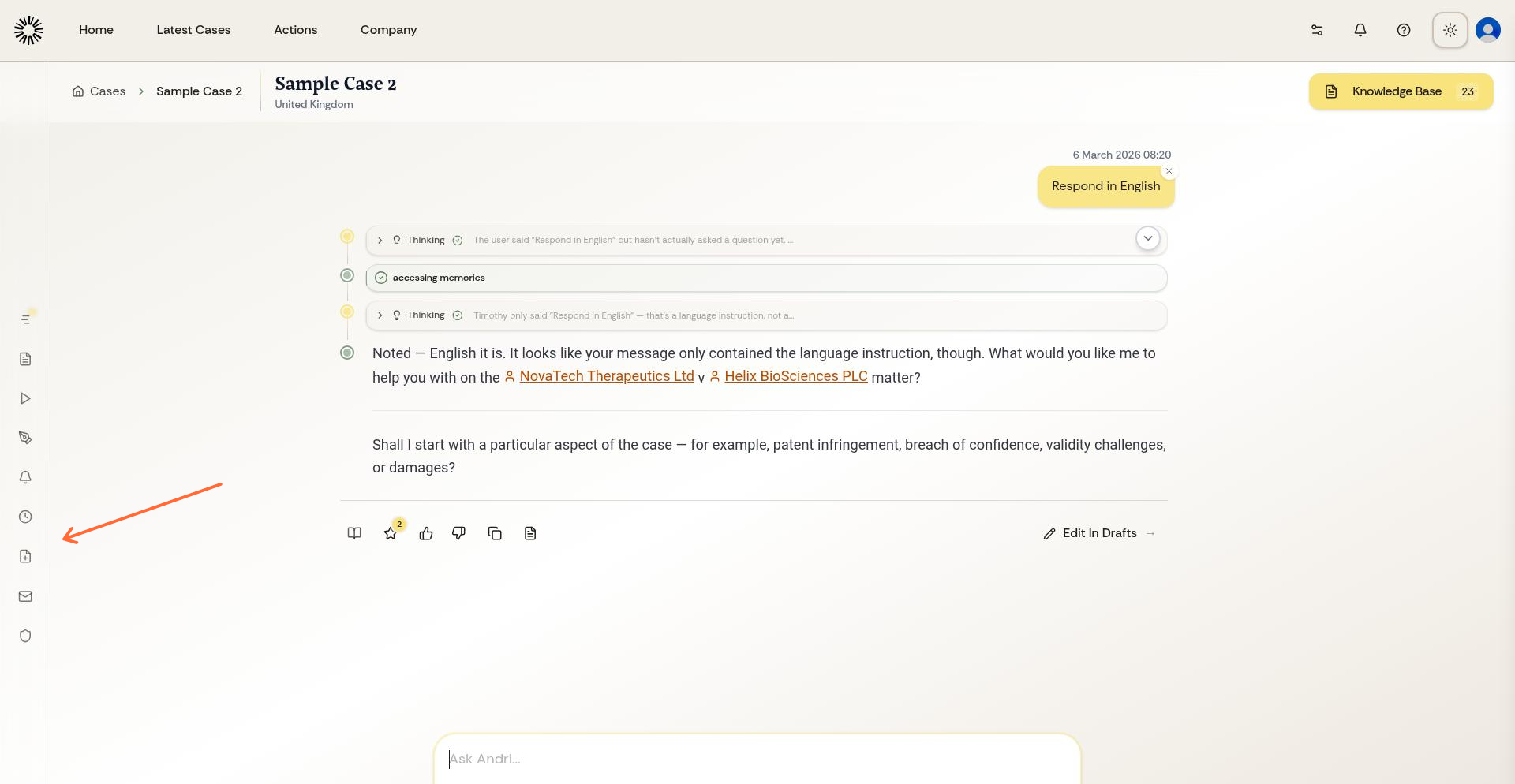
The Drafts page displays all draft documents for your case. Each draft shows its title, last modified date, and preview text.
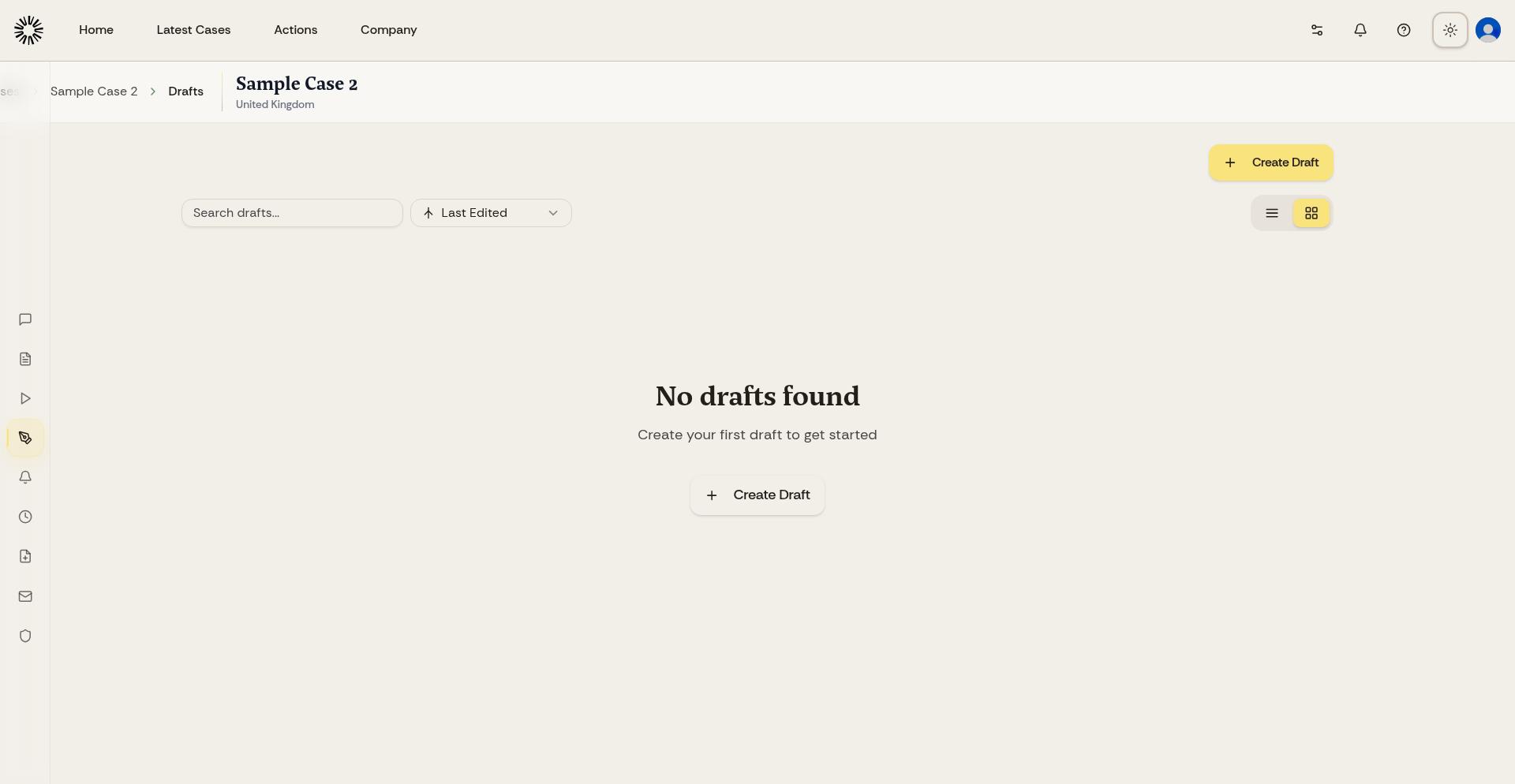
Creating a New Draft
Click the blue Create Draft button to start a new blank document.
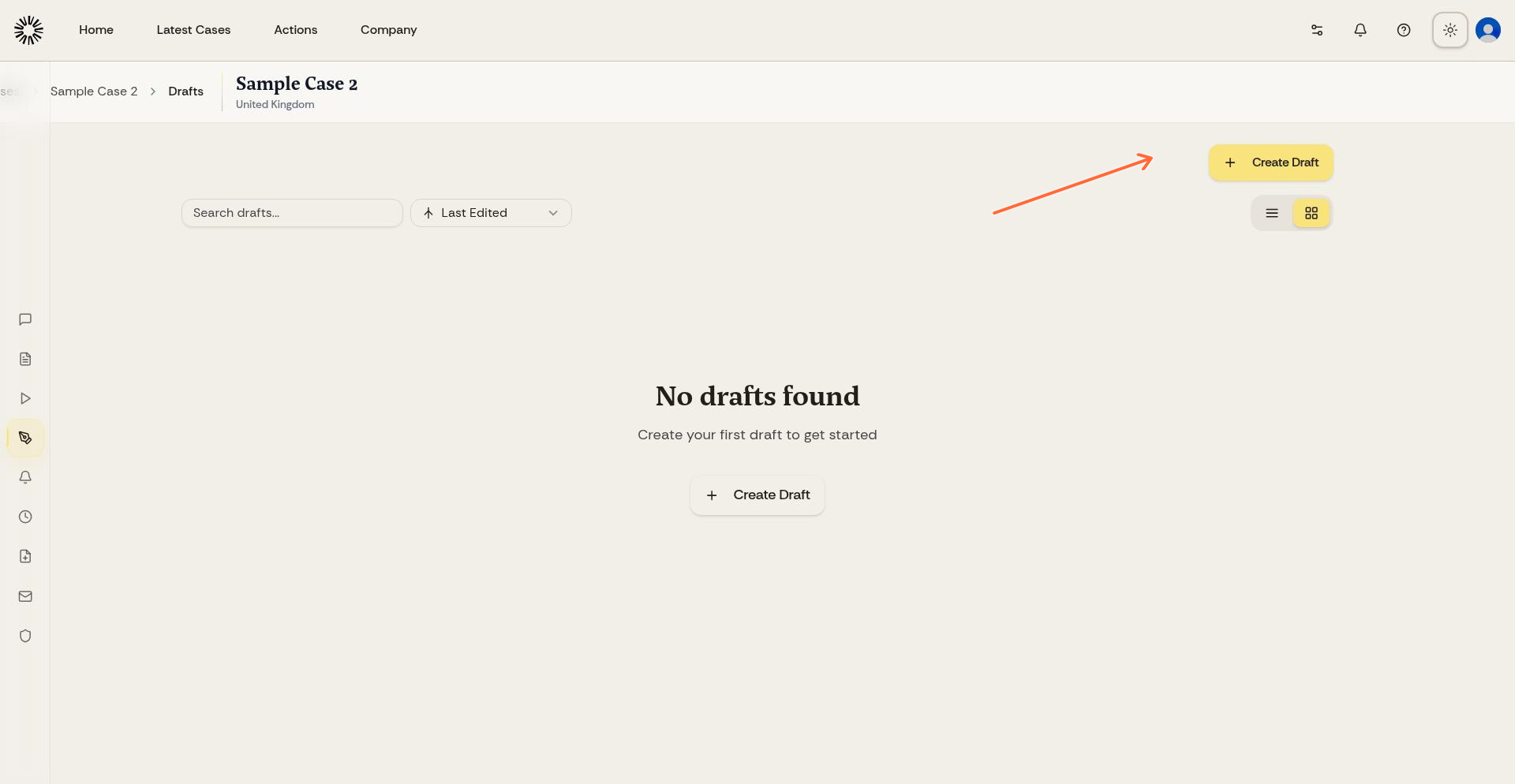
Alternatively, ask Andri to generate content in chat with prompts like "Draft a settlement letter" or "Create a summary of the contract." Andri generates the document and makes it available in your Drafts section.
Generate initial drafts from chat, then refine them in the Drafts editor. This workflow combines AI speed with precise manual control.
Understanding the Draft Editor
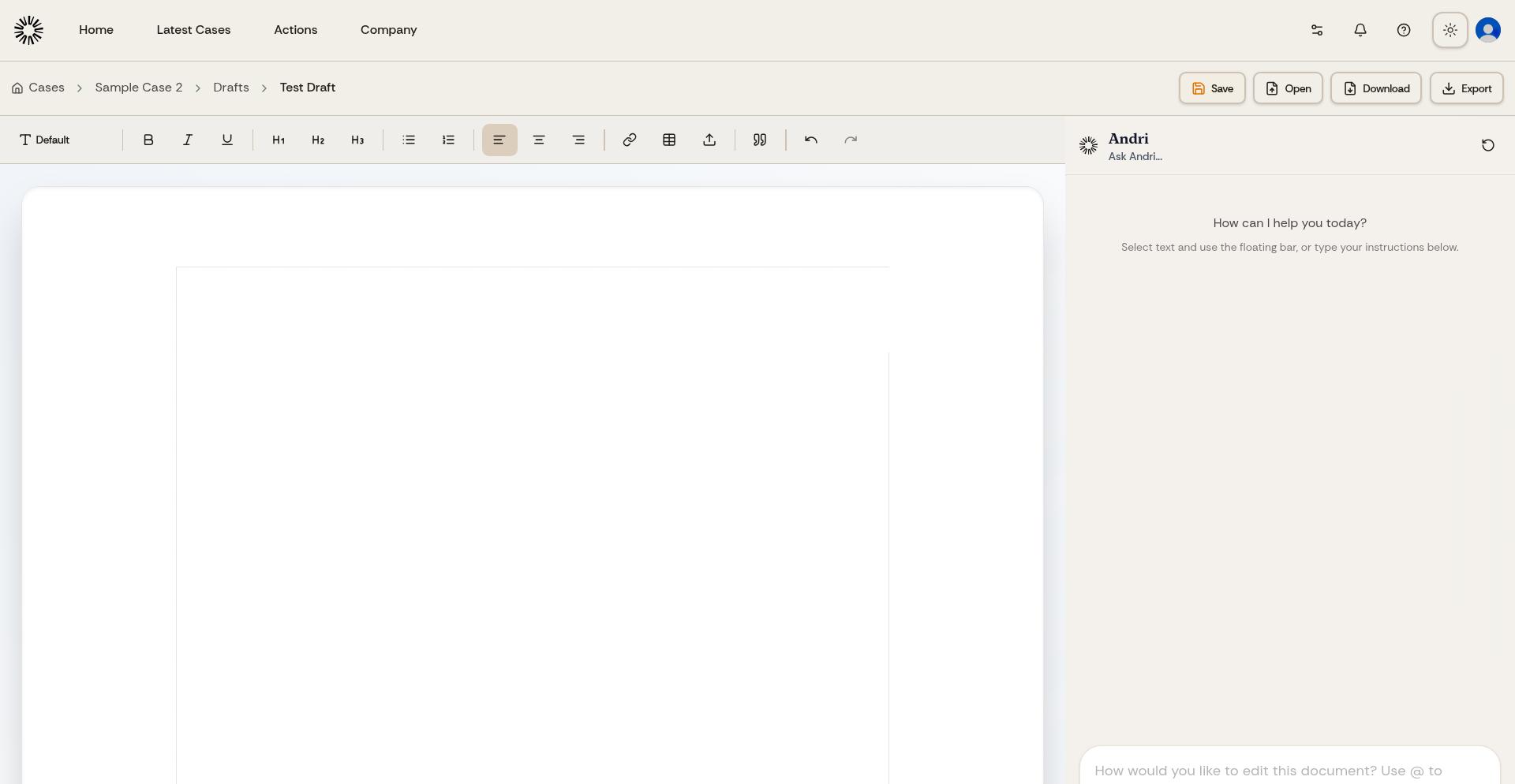
The draft editor opens in a full-screen interface with three main areas: the formatting toolbar at the top, the document editing area in the center, and optional sidebars for settings and options.
Using the Formatting Toolbar
The toolbar provides comprehensive formatting options similar to Microsoft Word or Google Docs.
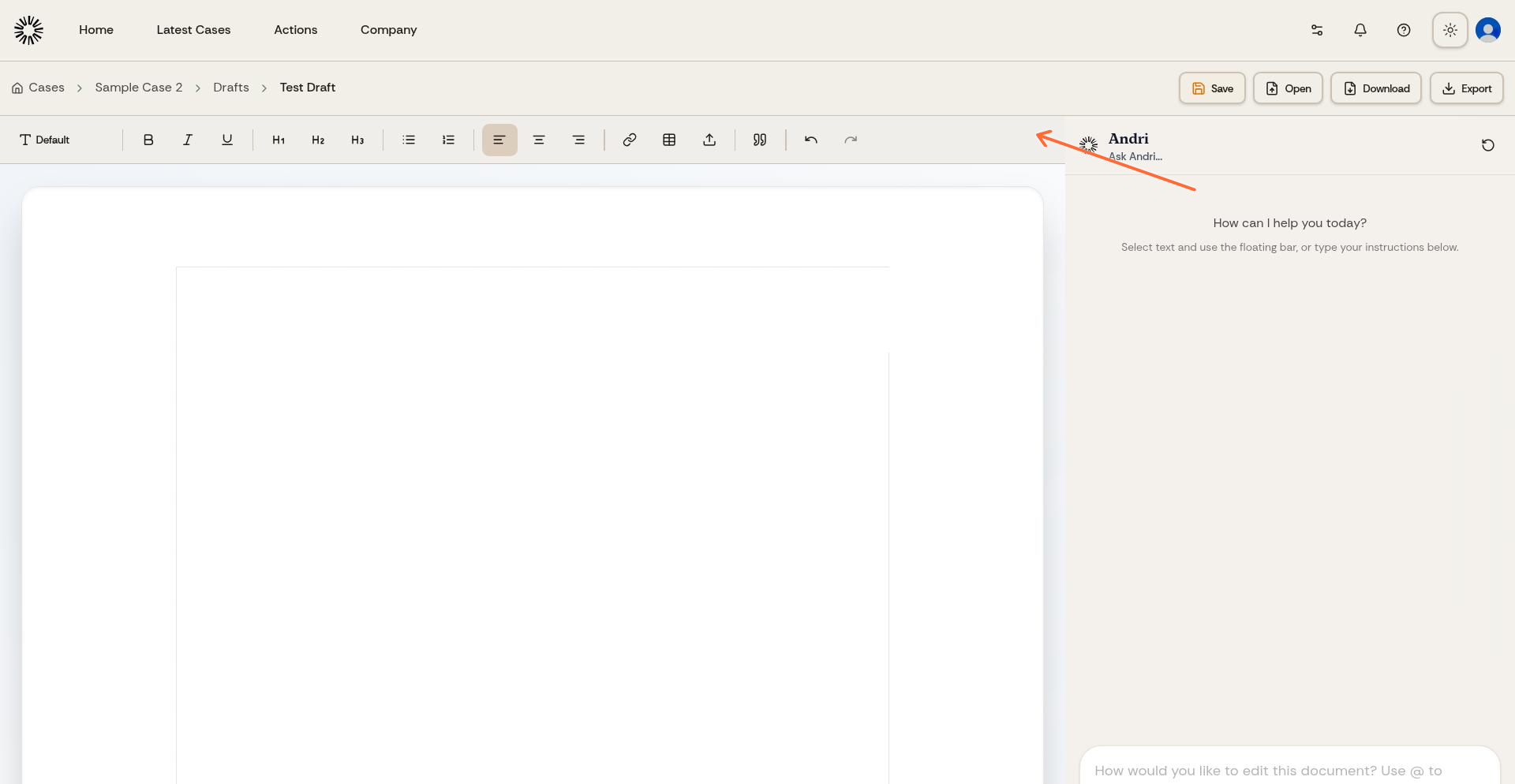
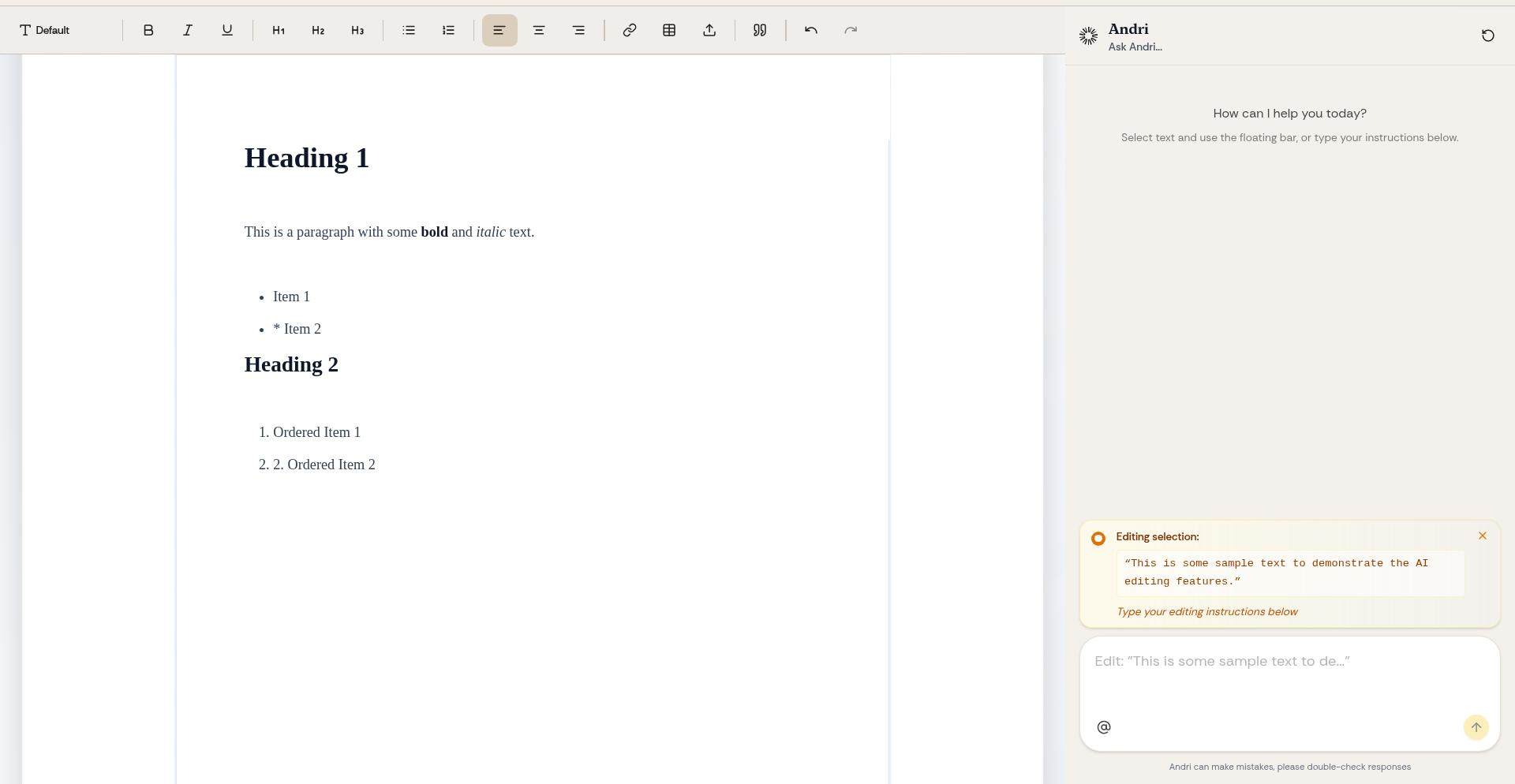
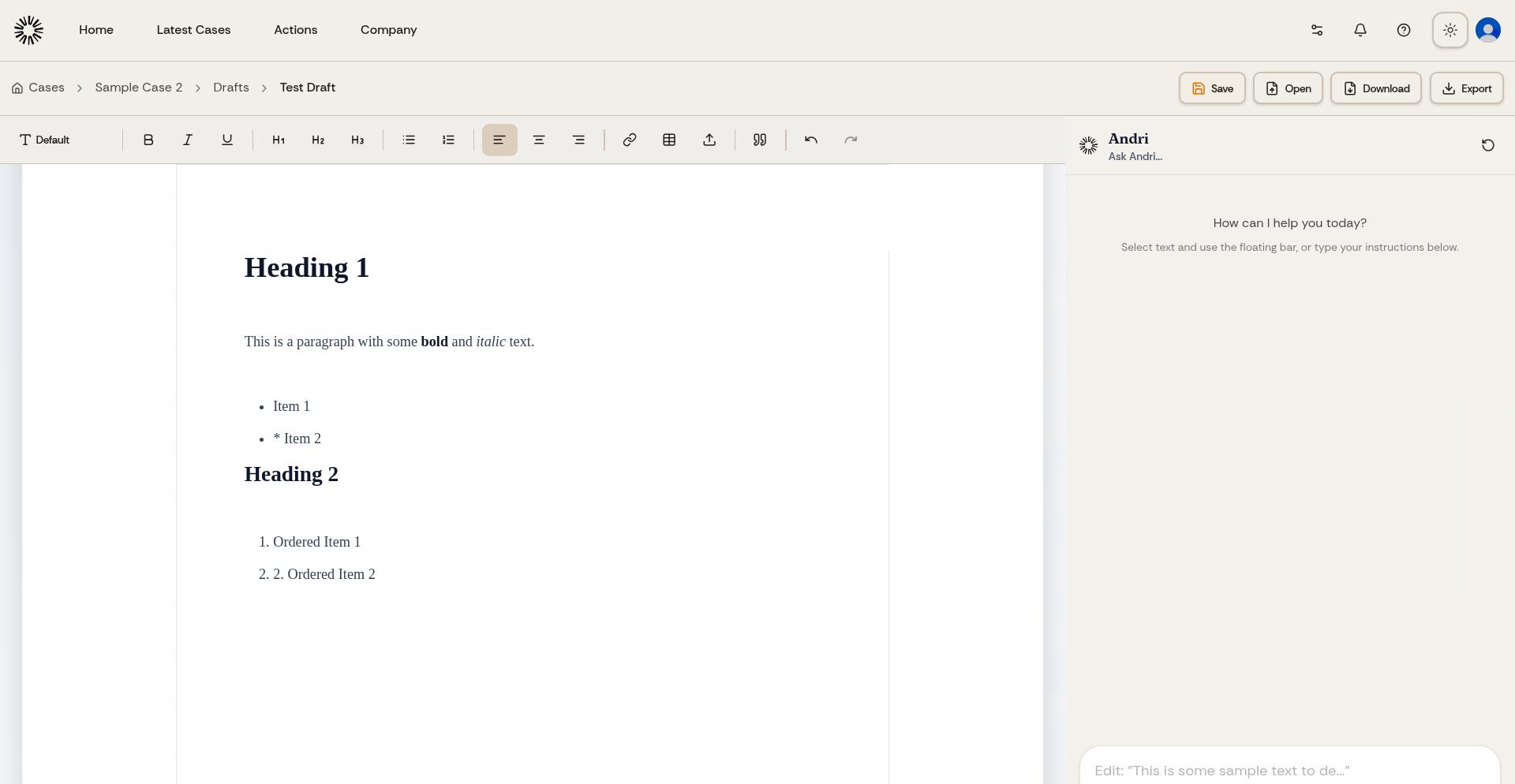
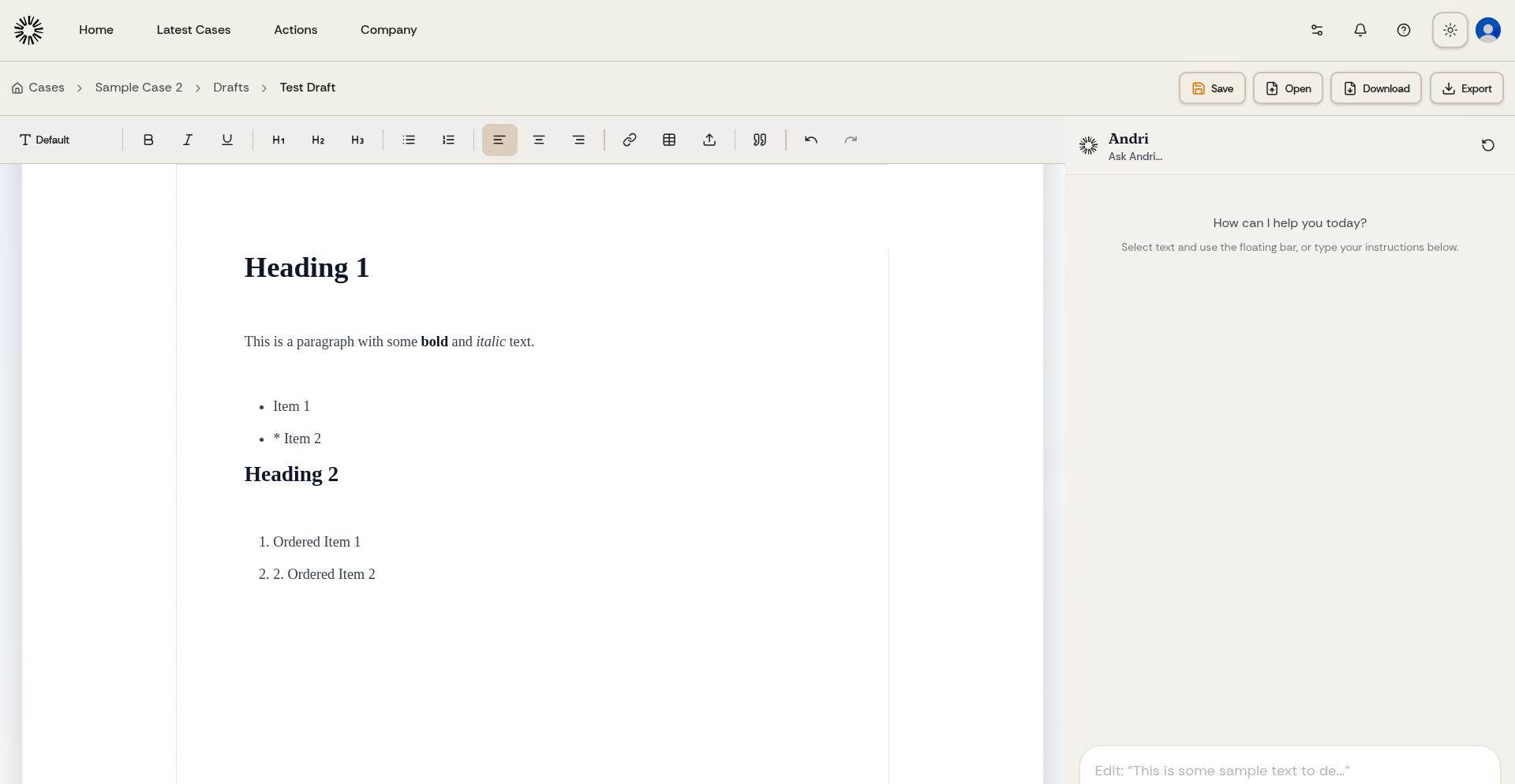
Available formatting options include font family selection, text formatting (bold, italic, underline), heading levels (H1, H2, H3), bullet and numbered lists, text alignment (left, center, right), hyperlinks, tables, images, block quotes, and undo/redo.
Use heading levels to structure your document. H2 for main sections, H3 for subsections. This improves readability and makes documents easier to navigate.
AI-Assisted Editing
The draft editor's most powerful feature is context-aware AI editing. Select any text to reveal AI editing options tailored to that specific content.
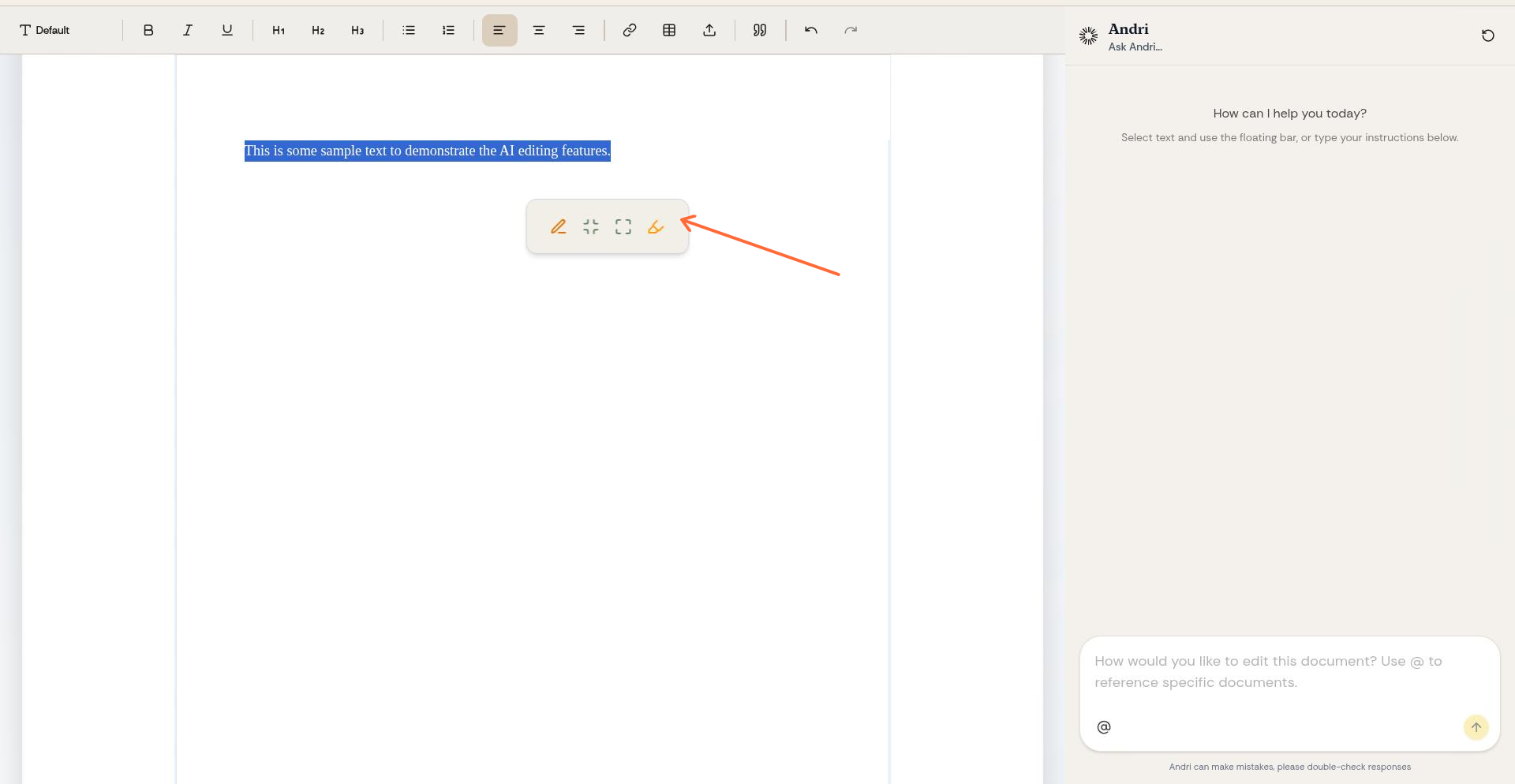
When you select text, Andri displays a floating menu with editing options.
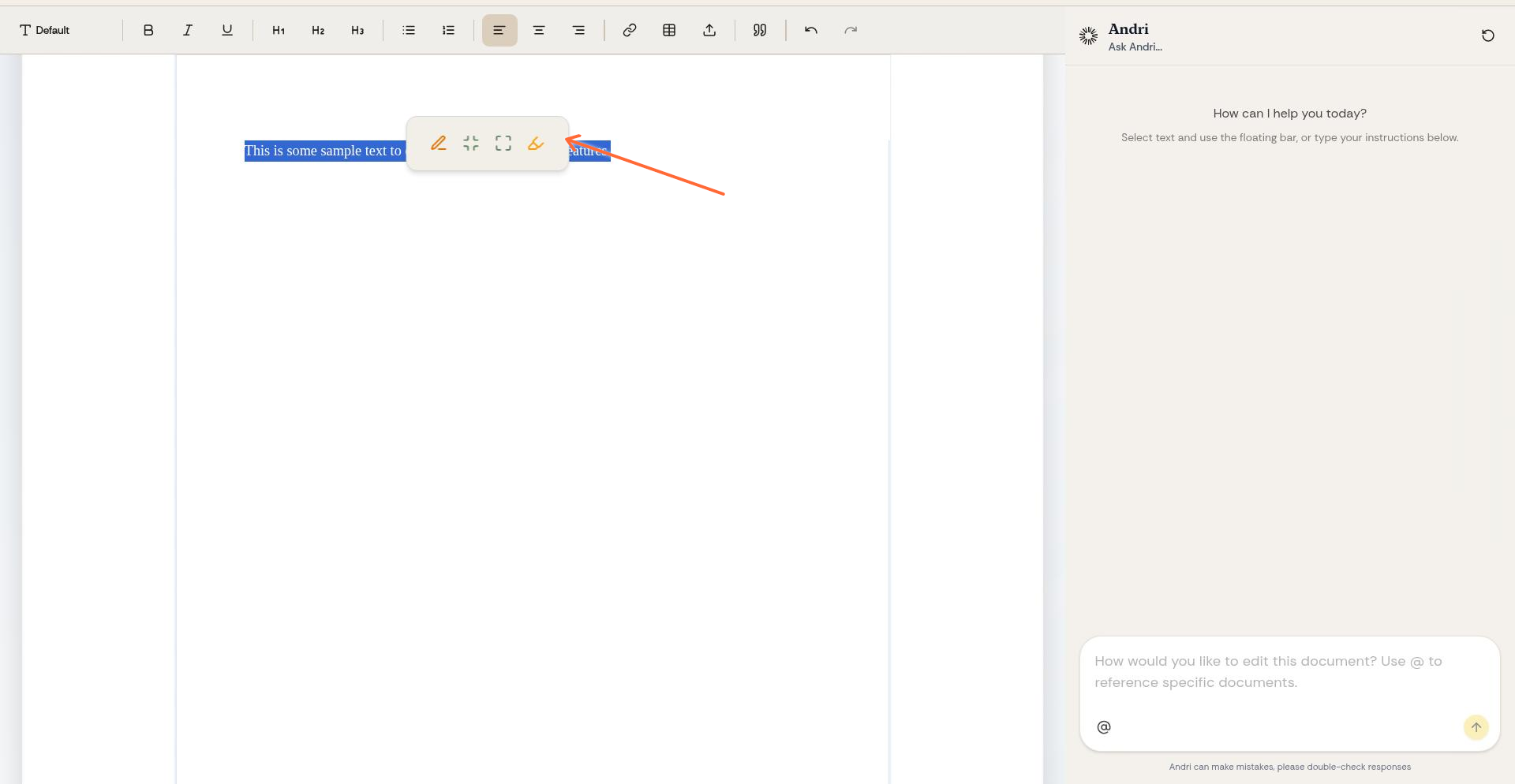
AI Editing Options Explained
Edit with Andri: Opens a prompt where you can give specific instructions for how to modify the selected text. For example, "make this more formal" or "add legal citations."
Summarise: Condenses the selected text into a shorter version while retaining key points. Ideal for lengthy sections that need tightening.
Expand: Adds more detail, context, or explanation to the selected text. Useful when a section needs more depth or supporting information.
Highlight: Marks text for attention or review. Use this to flag sections that need further work or colleague input.
Use selective editing to refine specific sections rather than regenerating entire documents. This preserves your manual edits while improving targeted areas with AI assistance.
Working with Your Draft Content
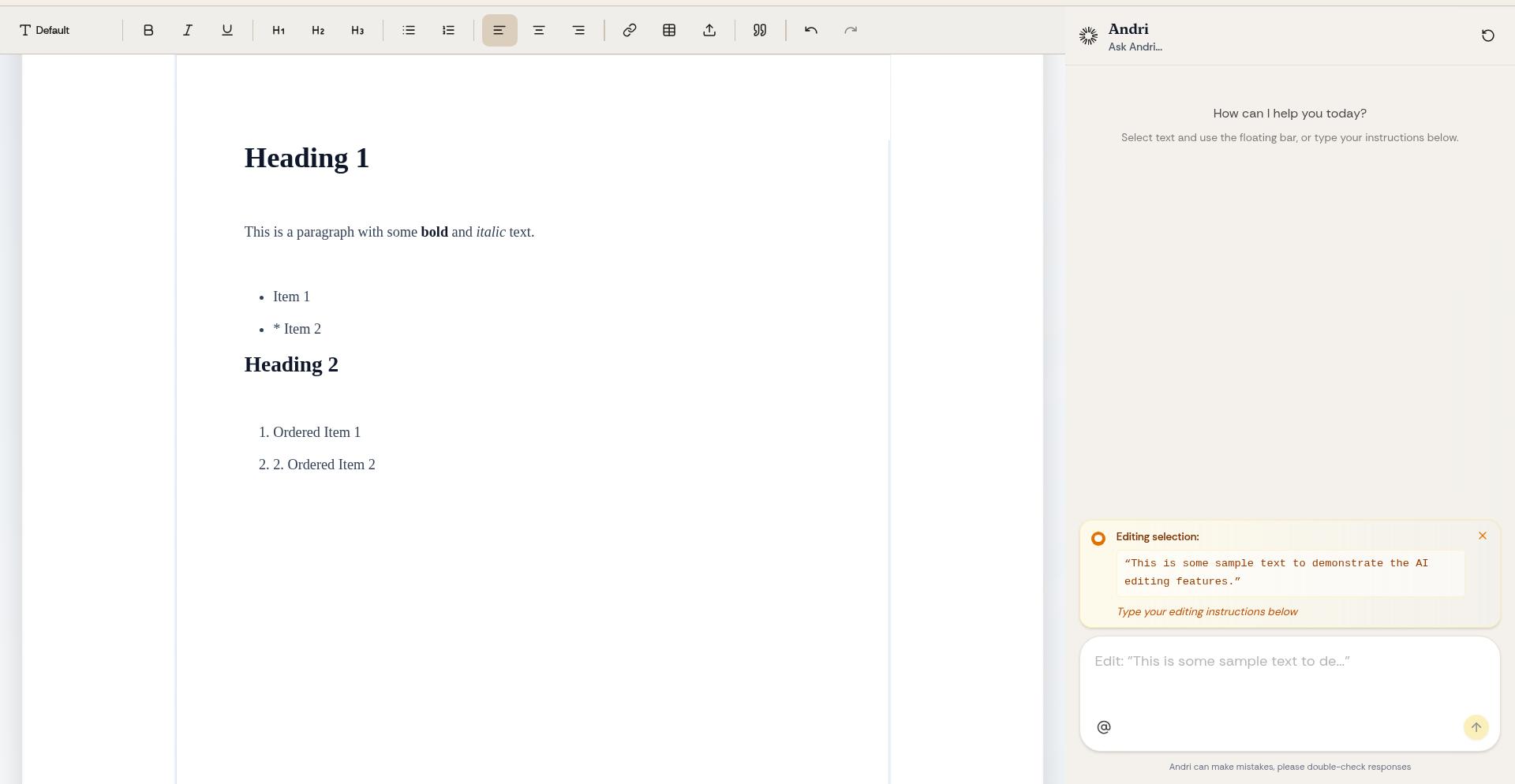
As you work, the editor shows your formatted content with all headings, lists, and styles applied in real-time.
The AI uses your case context, uploaded documents, and relevant case law when making editing suggestions. This ensures all AI-generated content remains accurate and relevant to your specific matter.
Exporting Your Draft
When your draft is ready, click the Export or Download button to save it as a Word document.
The export process applies your firm's house style automatically, including fonts and colors configured in Company settings, headers and footers with your firm logo, track changes settings with your author name, and consistent document formatting.
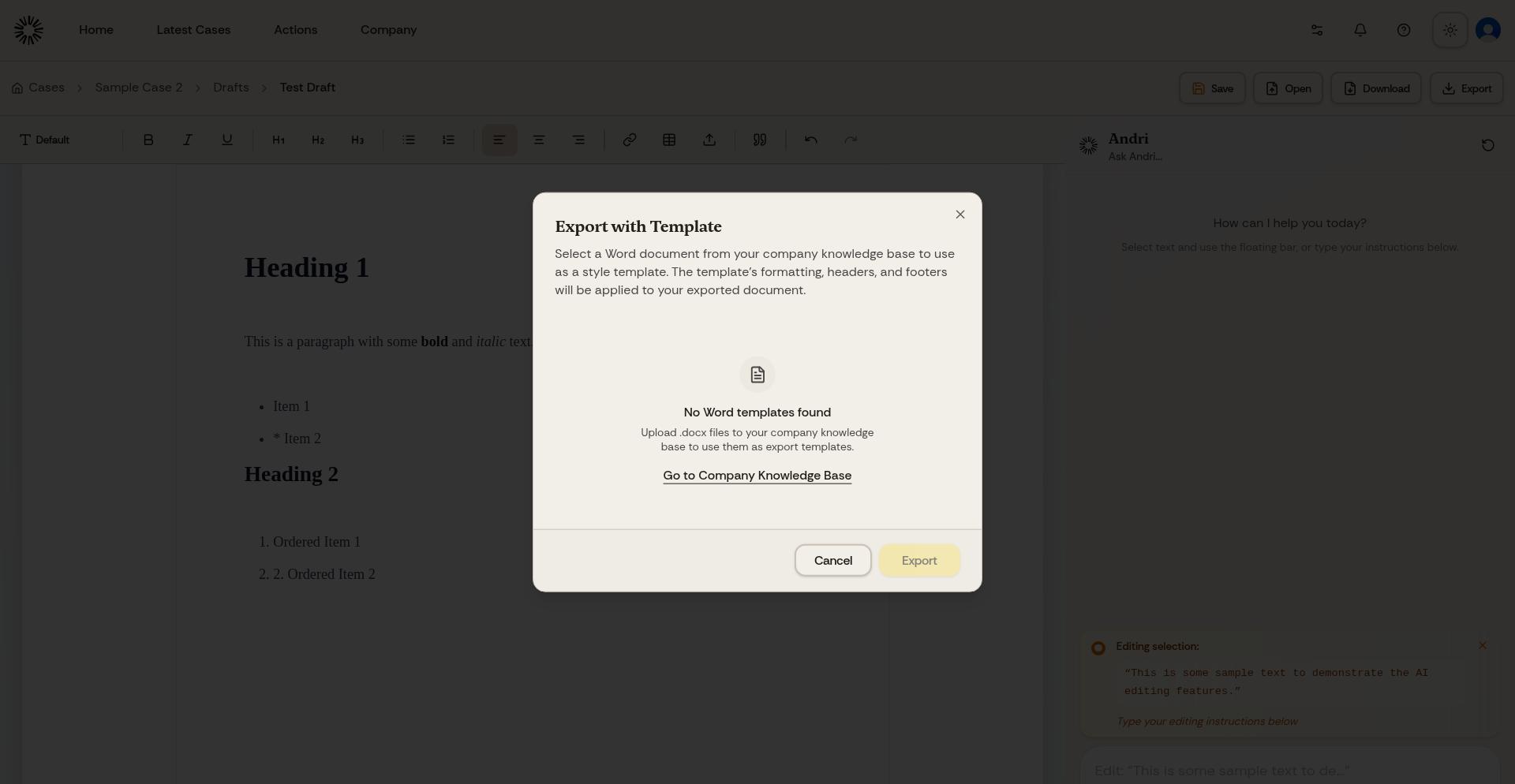
Exported documents open in Microsoft Word with full editing capability. Continue working on the document in Word if needed, or send directly to clients.
Draft Settings and Options
The right sidebar provides additional settings and configuration options for your draft.
Access document properties, version history, sharing settings, and template application from the sidebar. These options help you manage complex documents and collaborate with team members.
Auto-Save and Version History
Drafts automatically save as you work. Every change is preserved, so you never lose progress. Use the version history feature to review previous iterations or restore earlier versions if needed.
Make experimental edits without worry. Version history lets you revert to any previous state if you change your mind about edits.
Converting Chat Responses to Drafts
You can convert any AI response from your case chat into a draft for further refinement. This workflow is ideal when chat generates good initial content that needs formatting and polish.
Look for the option to "Open in Drafts" or "Edit as Draft" on AI responses in your case chat. The content transfers to the draft editor where you can apply formatting and make detailed edits.
Best Practices for Using Drafts
Start with AI-generated content from chat, then move to Drafts for refinement. Use headings and structure to organize complex documents. Apply AI editing selectively to specific sections rather than entire documents. Review and verify all AI-suggested edits before exporting. Export regularly to save local copies of important documents.
Always review AI-generated content carefully. While Andri's AI is highly accurate, professional judgment is essential for client-facing documents and court filings.