
Connect SharePoint, OneDrive and Google Drive
Connect a Microsoft SharePoint, Microsoft OneDrive or Google Drive account to Andri to import files directly from your cloud storage into your cases.
Before you begin: only the matter owner can connect or disconnect a data source, and you'll need an account with access to the files you want to import.
Connect cloud storage
Open a case and navigate to the Knowledge section
Click the Connect button in the cloud storage area
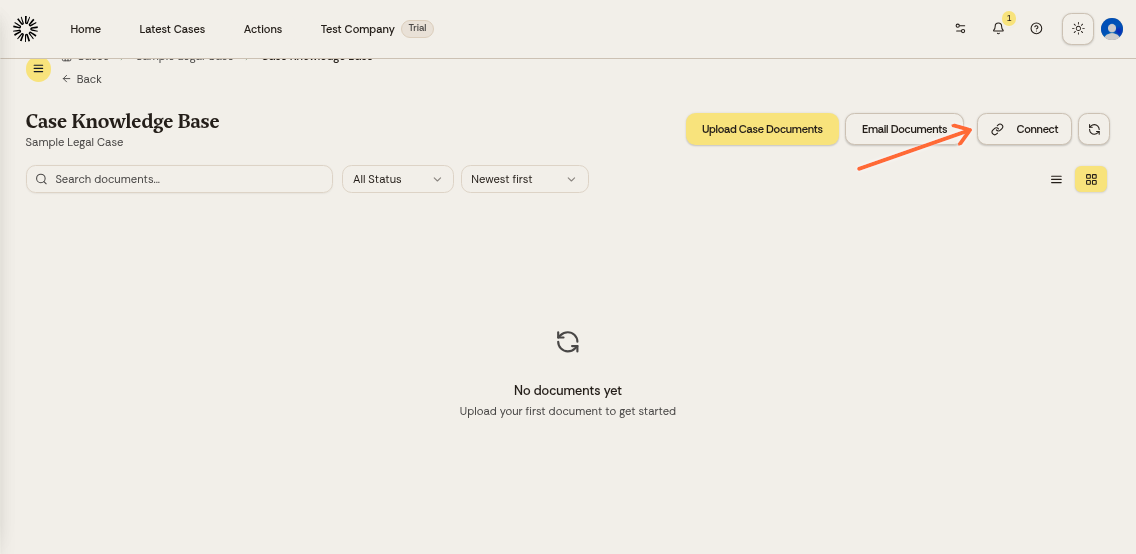
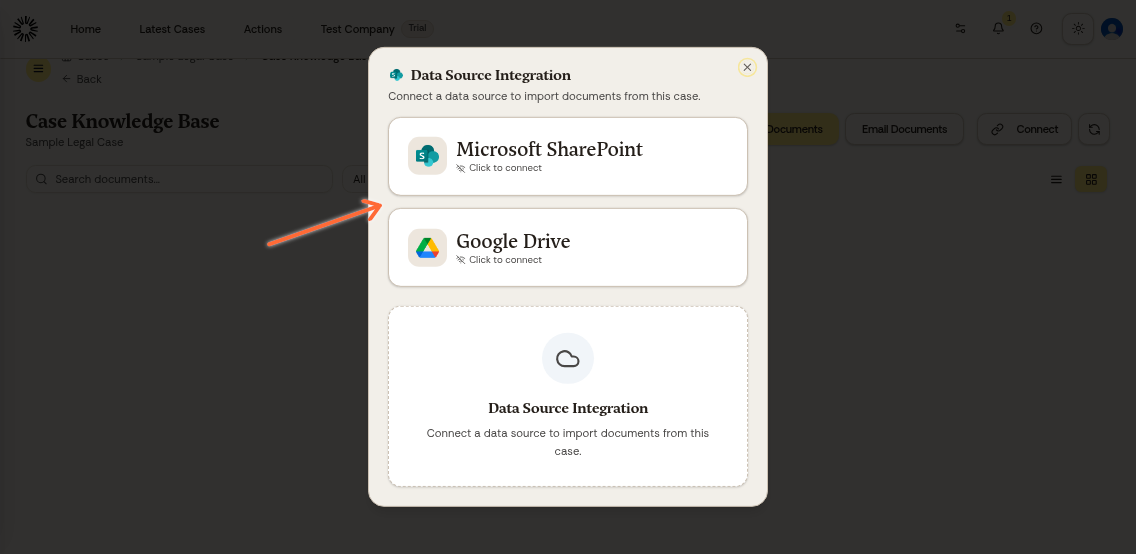
Select Microsoft SharePoint, Microsoft OneDrive or Google Drive from the options
Sign in with your Microsoft or Google account when prompted
Grant Andri permission to access your files
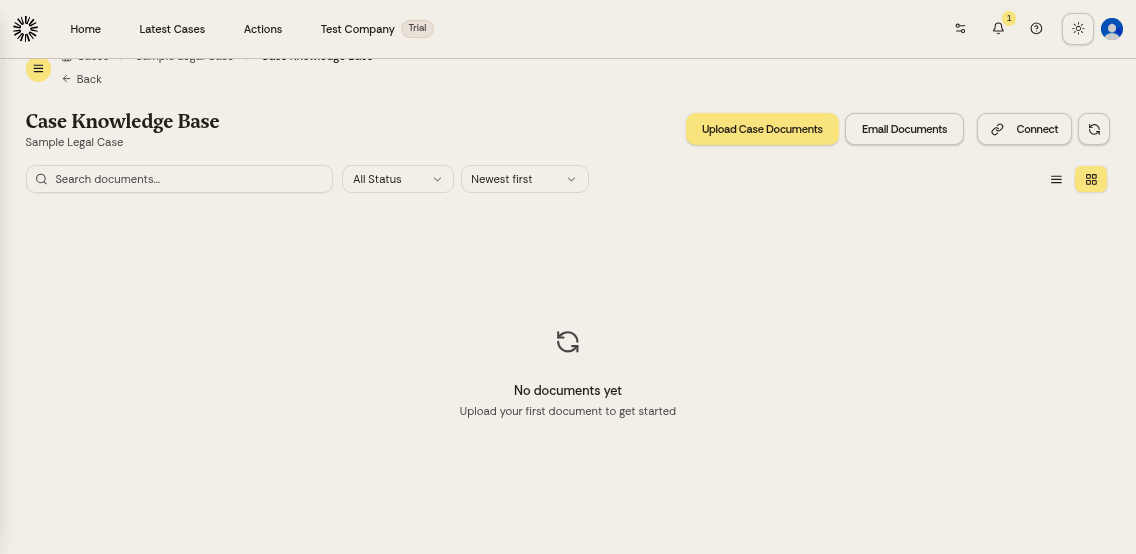
Your connected storage appears in the Knowledge section
You can connect more than one service to the same case. SharePoint, OneDrive and Google Drive each keep their own connection.
Search SharePoint without importing
Once SharePoint is connected, Andri can search your SharePoint and open the files it needs while working on the case. Nothing is copied into Andri unless you import it.
Only the case owner can use SharePoint search in chat. Colleagues you share the case with see the files you imported, not your SharePoint. OneDrive and Google Drive are import only.
Import files from connected storage
What you import depends on the provider you connected.
Microsoft SharePoint imports folders. Choose a site, select the folders you want, and click Import Now. Every site you have access to appears in the list.
Microsoft OneDrive imports folders and individual files. Pick what you want to bring into the matter.
Google Drive imports individual documents. Open a folder to reach the documents inside it and select as many as you need. Folders themselves cannot be imported.
Importing is a one-off action rather than a running sync, so use Import Now again when the source has changed.
Imported files are automatically analyzed, summarized, and tagged by Andri. Files larger than 100 MB are skipped by all three connectors, so upload those directly to the case instead.
When authorisation expires
Authorisation does not last forever. When it lapses, the connection shows Authorisation expired and Andri cannot read your documents until you click Reconnect and sign in again.
Manage connected accounts
Open the Knowledge section, find the connected data source, and click the trash icon on its card. Only the matter owner sees that control.
Disconnecting a cloud storage account removes access to those files in Andri. Files already imported into the case remain available.