
Using light and dark mode
Andri supports both light and dark display modes, allowing you to choose the visual theme that works best for your environment and preferences.
Switching themes
Click the sun or moon button in the top right corner. Each press switches between light and dark.
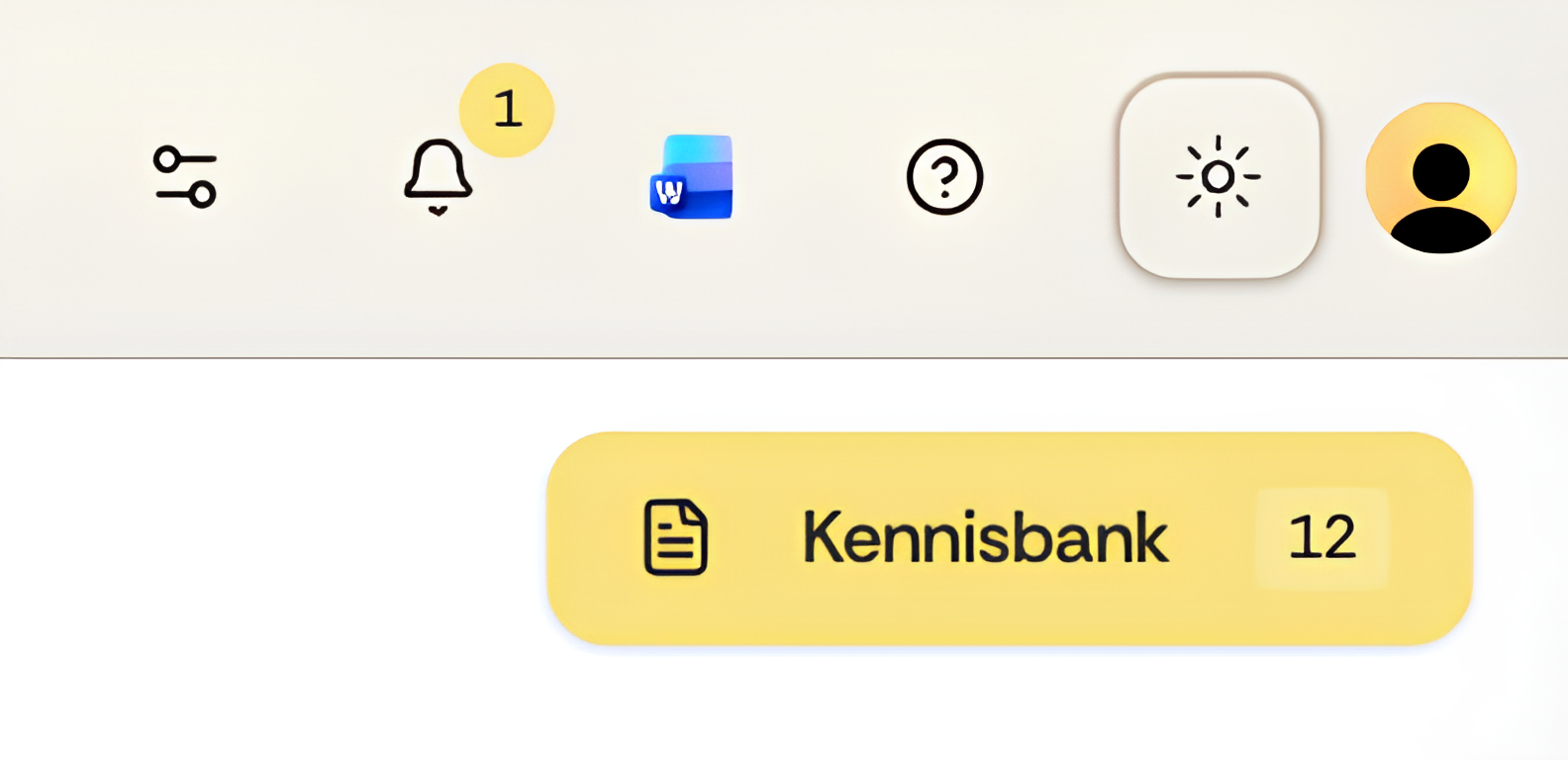
The interface switches immediately. Your choice is stored in the browser you are working in, so it stays there but does not follow you to another browser or another device.
Light mode
Light mode uses bright backgrounds with dark text. This theme works well in bright environments, during daytime work, and when printing or exporting content that will be viewed on paper.
Light mode typically reduces eye strain in well-lit offices and provides the most contrast for detailed document review.
Dark mode
Dark mode uses dark backgrounds with light text. This theme is ideal for low-light environments, extended screen time in the evening, and reducing eye fatigue during long work sessions.
Dark mode also reduces screen brightness, which can be easier on your eyes and may extend battery life on laptops.
Switch to dark mode when working late or in dimly lit environments. Many users find it reduces eye strain during extended research sessions.
Theme and document generation
Your theme preference affects only the Andri interface. Generated documents, exports, and PDFs always use standard document colors regardless of your selected theme.
Theme preference is personal and doesn't affect other team members. Each user can select their preferred theme independently.
Automatic theme switching
Until you press the button yourself, Andri follows the light or dark setting of your operating system. From your first press onwards, that browser stays on the theme you chose and stops following the system setting.