
Setting Up Your House Style
Your firm's house style applies consistent branding to all documents generated by Andri, including your logo, fonts, colors, and formatting preferences.
Before you begin: Only admins can configure house style. Changes apply to all team members and all generated documents.
Accessing House Style Settings
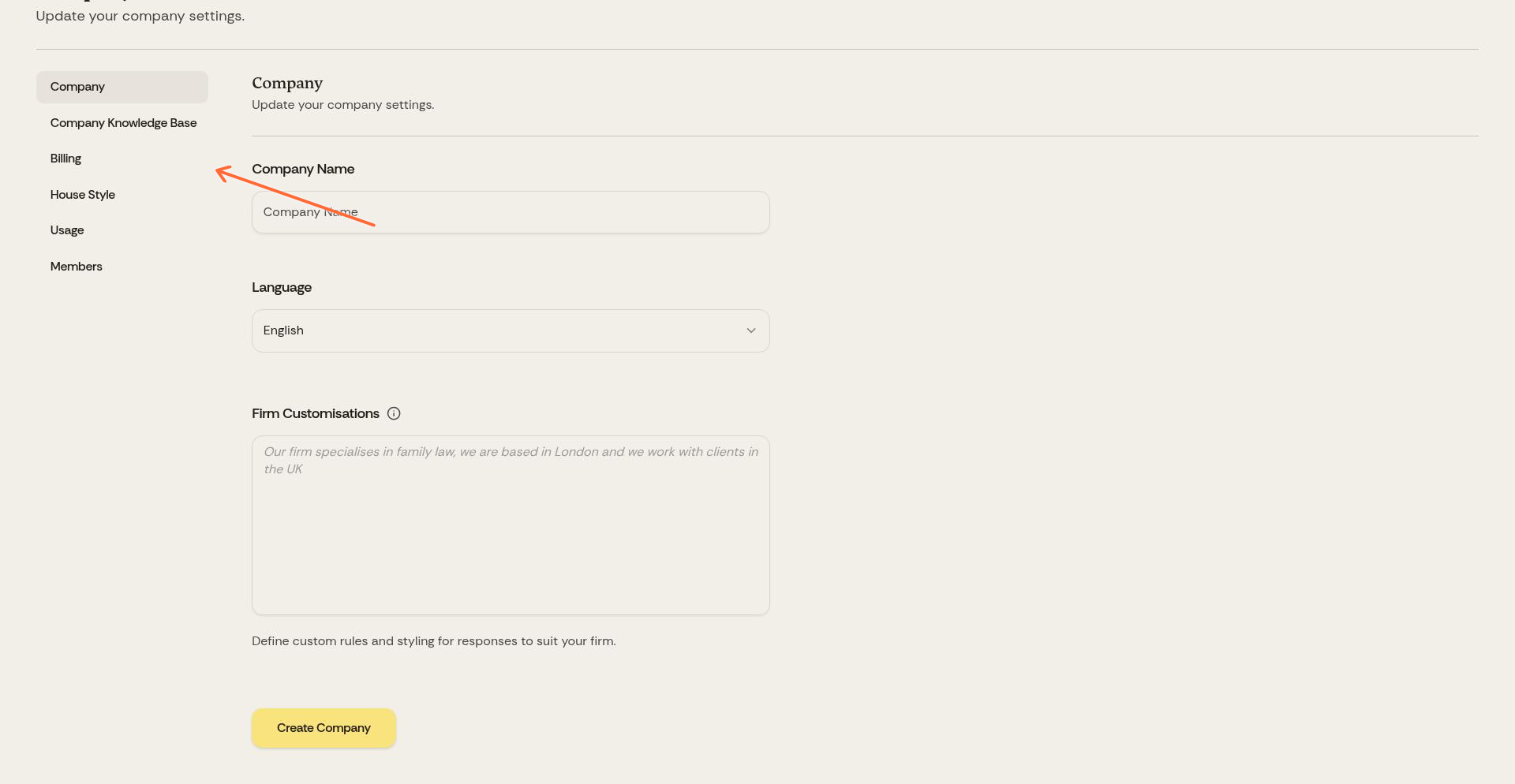
Click Company in the top navigation, then select House Style from the left sidebar.
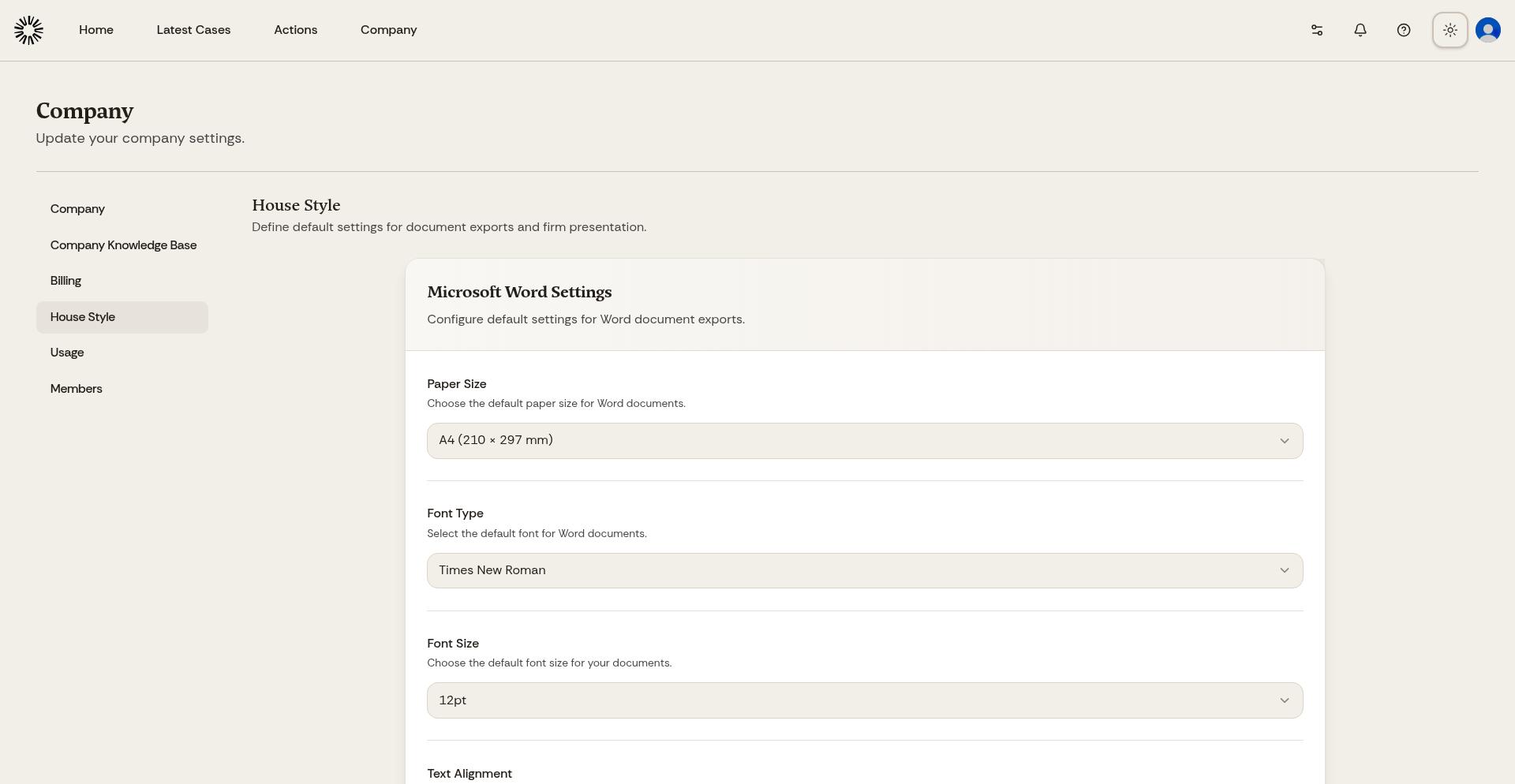
The House Style page provides options to configure your firm's branding.
Adding Your Firm Logo
Upload your firm logo in PNG or JPG format. The logo appears on headers or footers of all generated Word documents and PowerPoint presentations.
For best results, use a high-resolution logo with transparent background (PNG). Recommended size is at least 300px wide.
Upload both a color logo and a monochrome version. Andri automatically selects the appropriate version based on document style and background color.
Configuring Fonts
Select your firm's standard fonts for headings and body text. Choose from professionally licensed fonts available in Andri, or specify custom fonts if your firm has specific requirements.
Heading and body fonts can differ for visual hierarchy. Most firms use a bold sans-serif for headings and a readable serif for body text.
Setting Brand Colors
Define your firm's primary and secondary brand colors. These colors apply to document headings, table headers, charts, and other design elements.
Enter colors using hex codes (e.g., #1E3A8A) or RGB values. Choose colors that provide good contrast for readability.
Document Layout Preferences
Configure default page layout including margin sizes, header and footer content, page numbering style, and default paper size (A4 or Letter).
These settings apply to all generated Word documents unless overridden for a specific document.
Track Changes Settings
Choose how track changes appear in generated Word documents including whether track changes are enabled by default, author name for AI-generated edits, and revision color preferences.
House style applies automatically to all documents generated through Tasks, Drafts, and Actions. No per-document configuration is needed.
Testing Your House Style
After configuring house style, generate a test document to verify the branding appears correctly. Adjust settings as needed until the output matches your firm's standards.