
Inviting Team Members in Andri
Invite your colleagues to join your Andri workspace so they can collaborate on cases and access your shared knowledge base.
Before you begin: Make sure you have completed your company setup. You'll need admin access to invite team members.
Step 1: Go to your company environment
Click on your company name in the top right corner of the screen. If you have not set up your company profile, do this first.
Step 2: Go to member management
Click on "Members" in the left side menu.
You will now be taken to the page where you can manage your team members.
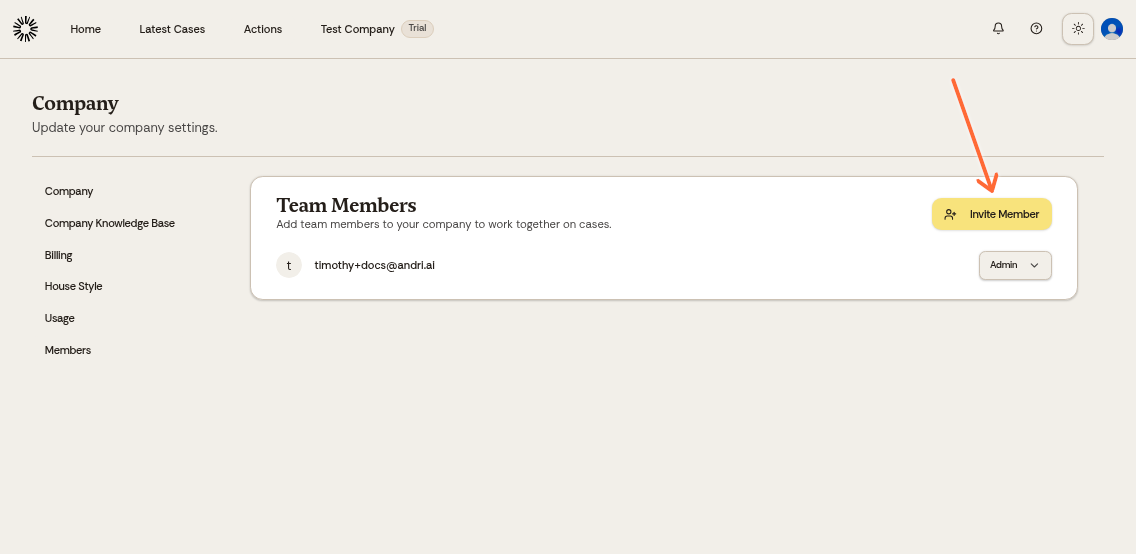
Step 3: Invite a team member
Click on the "Invite Member"
A pop-up will appear where you fill in the following details:
Email address of the team member.
Role (Admin or Member).
Click on "Invite" to send the invitation.
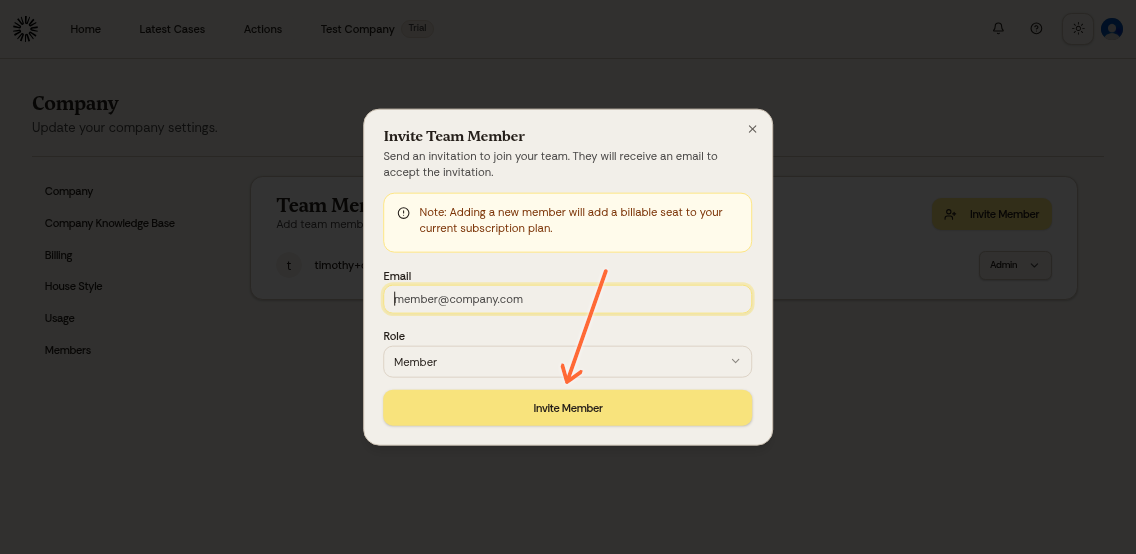
Admins can manage company settings, billing, and team members. Regular members can work on cases and access the knowledge base but cannot change company settings.
Step 4: Acceptance of the invitation
New users (without an Andri account):
Receive an email with instructions to create an account and accept the invitation.
Existing users (with an Andri account):
Receive a notification at the bell icon in the top right corner.
They can click "Accept" there to accept the invitation.
Good to know: Each new team member added will increase your monthly subscription cost by one seat (€350/month per user).
Once accepted, the new team member is added to your company environment and can immediately collaborate within Andri.