
Step 1: Go to your company environment
- Click on your company name in the top right corner of the screen. If you have not set up your company profile, do this first. View the Manual: Setting Up Your Company and Activating a Subscription on Andri.ai
Step 2: Go to member management
• Click on “Members” in the left side menu.
• You will now be taken to the page where you can manage your team members.

Step 3: Invite a team member
- Click on the “Invite Member”
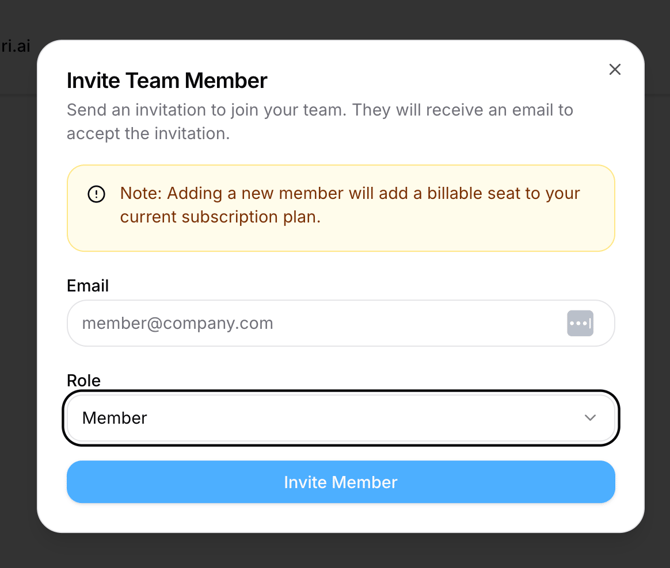
- A pop-up will appear where you fill in the following details:
- Email address of the team member.
- Role (Admin or Member).
- Click on “Invite” to send the invitation.
Step 4: Acceptance of the invitation
- New users (without an Andri.ai account):
- Receive an email with instructions to create an account and accept the invitation.
- Existing users (with an Andri.ai account):
- Receive a notification at the bell icon in the top right corner.
- They can click “Accept” there to accept the invitation.
Once accepted, the new team member is added to your office environment and can immediately collaborate within Andri.ai.